Installing Cypress and writing your first test
Installing Cypress
Before we can write any tests, we need to add Cypress to our project. From your terminal, run:
npm install cypress --save-dev
With Cypress installed, launch it with:
npx cypress open
tip
You can click on the images to enlarge them.
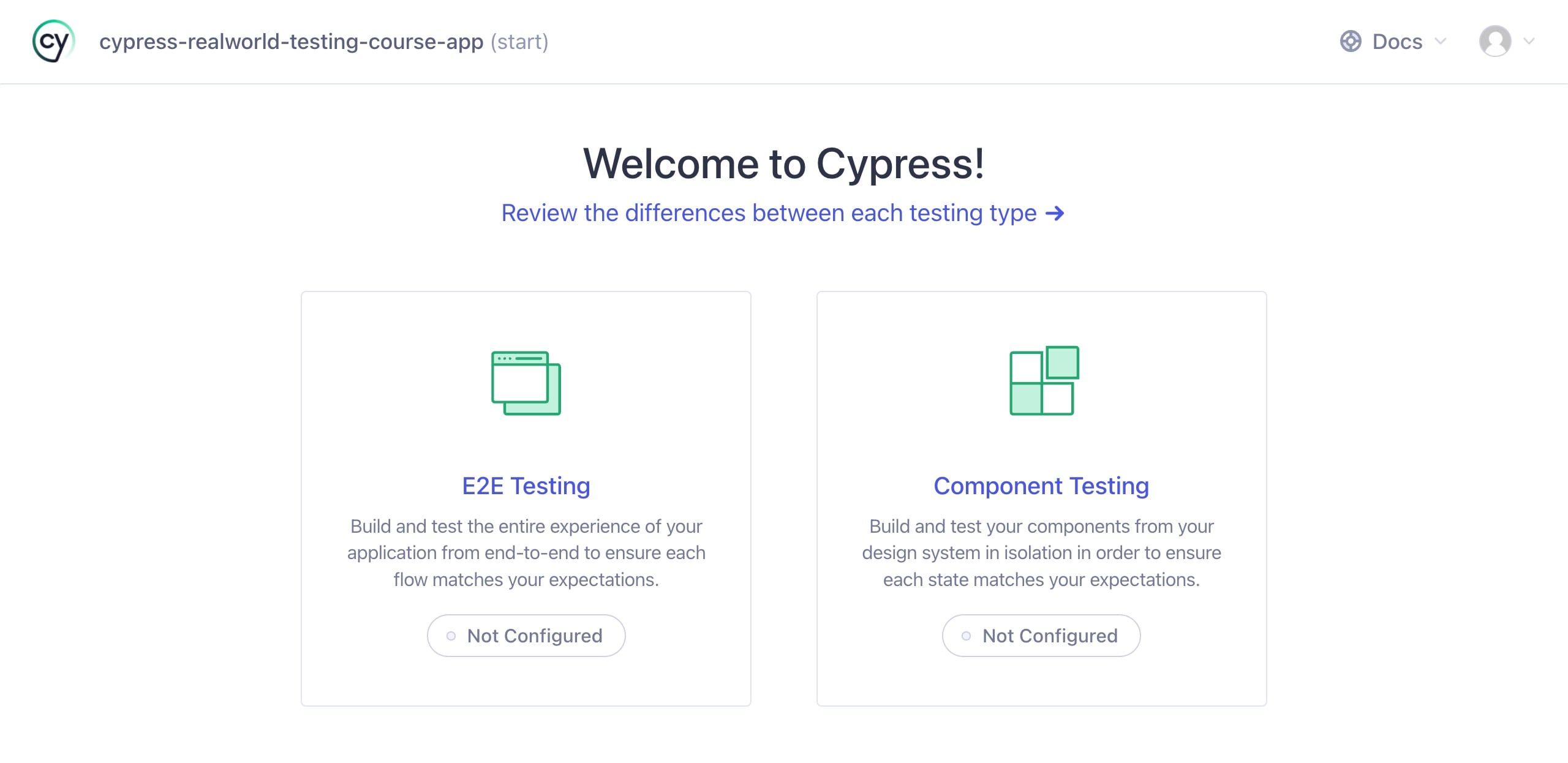
Cypress can run two kinds of tests: end-to-end (E2E) tests and component tests. In this course we will focus exclusively on E2E tests.
Click the “E2E Testing” button on the left to get started.
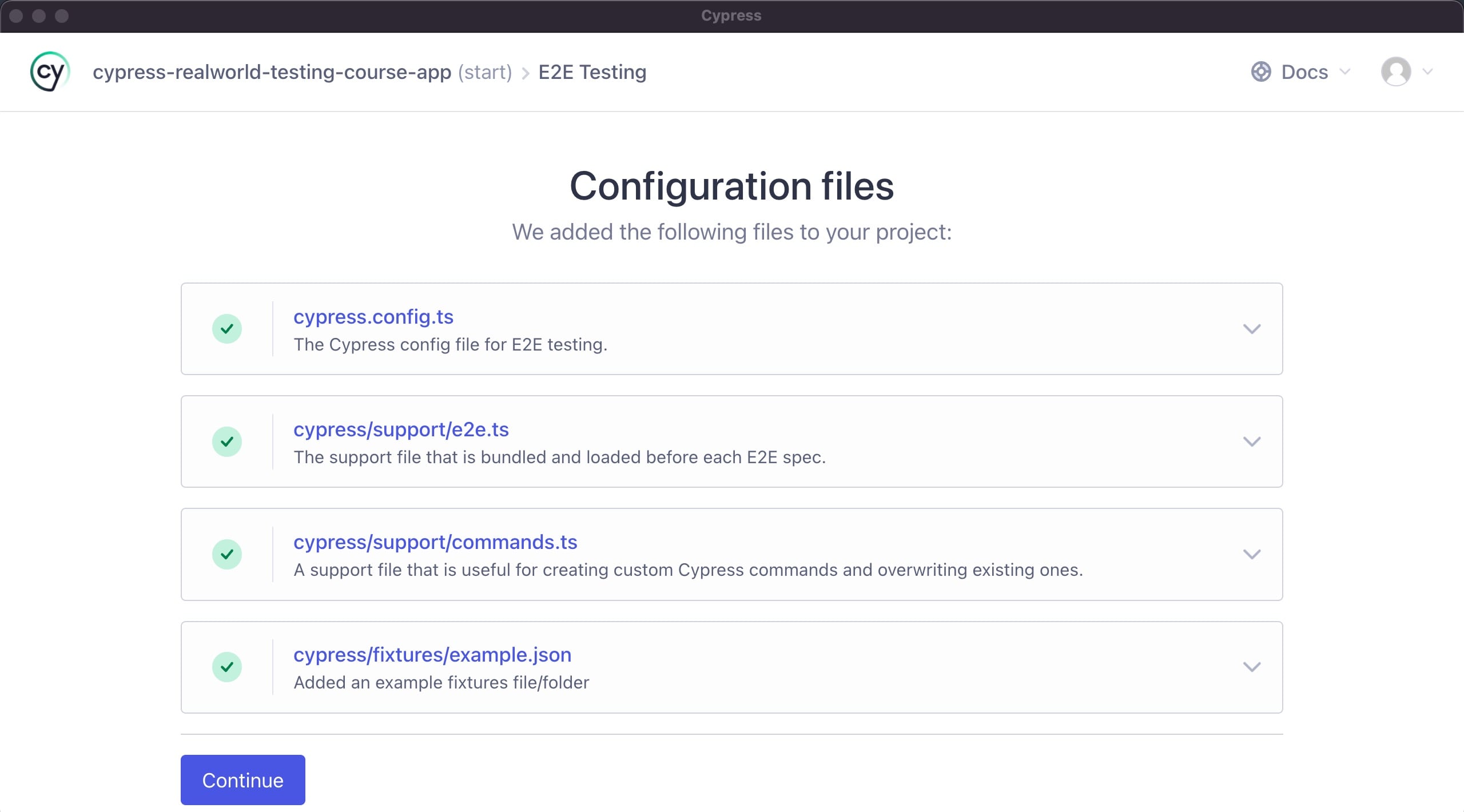
Cypress will show you the configuration files it is about to create to set up E2E testing. Click the “Continue” button at the bottom.
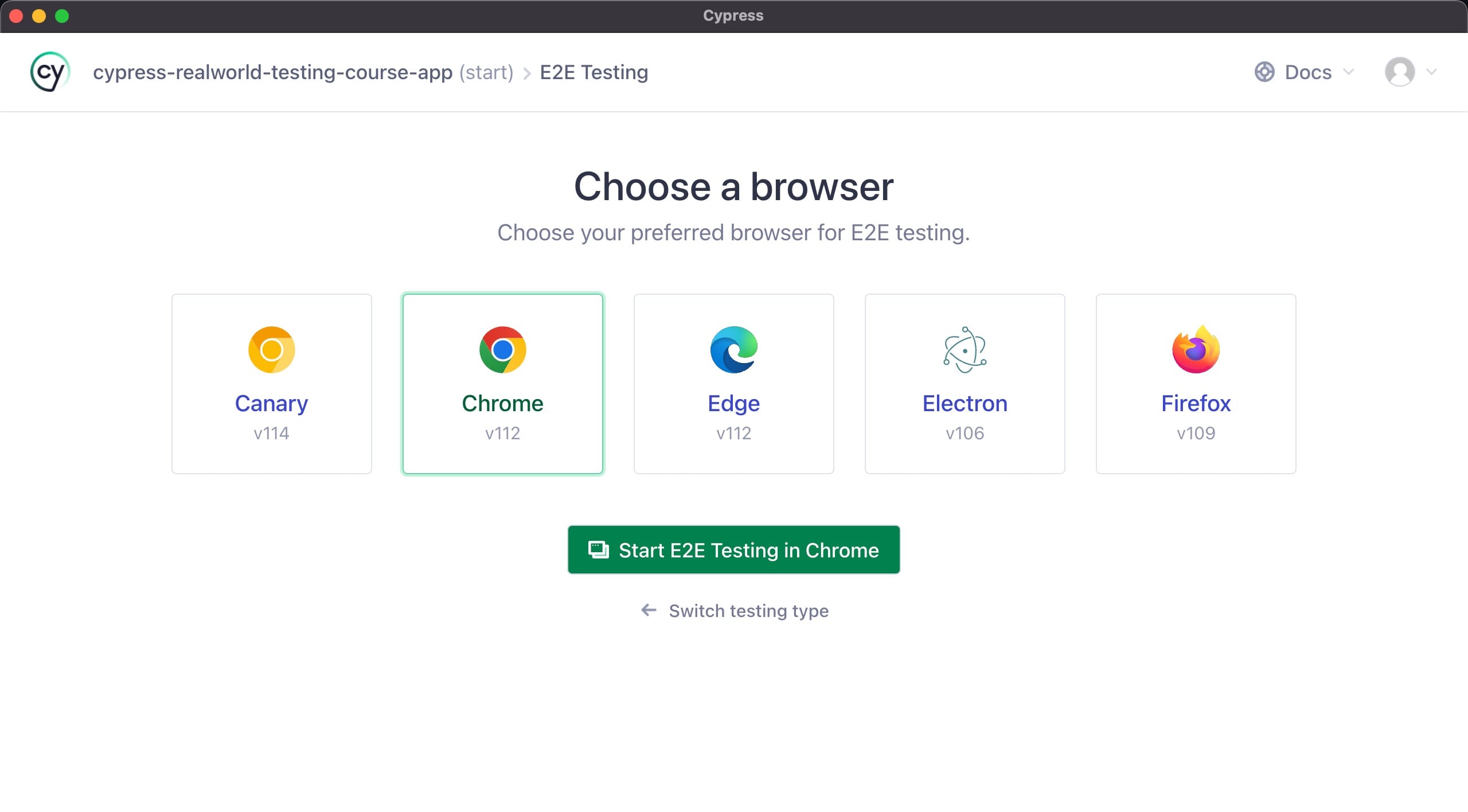
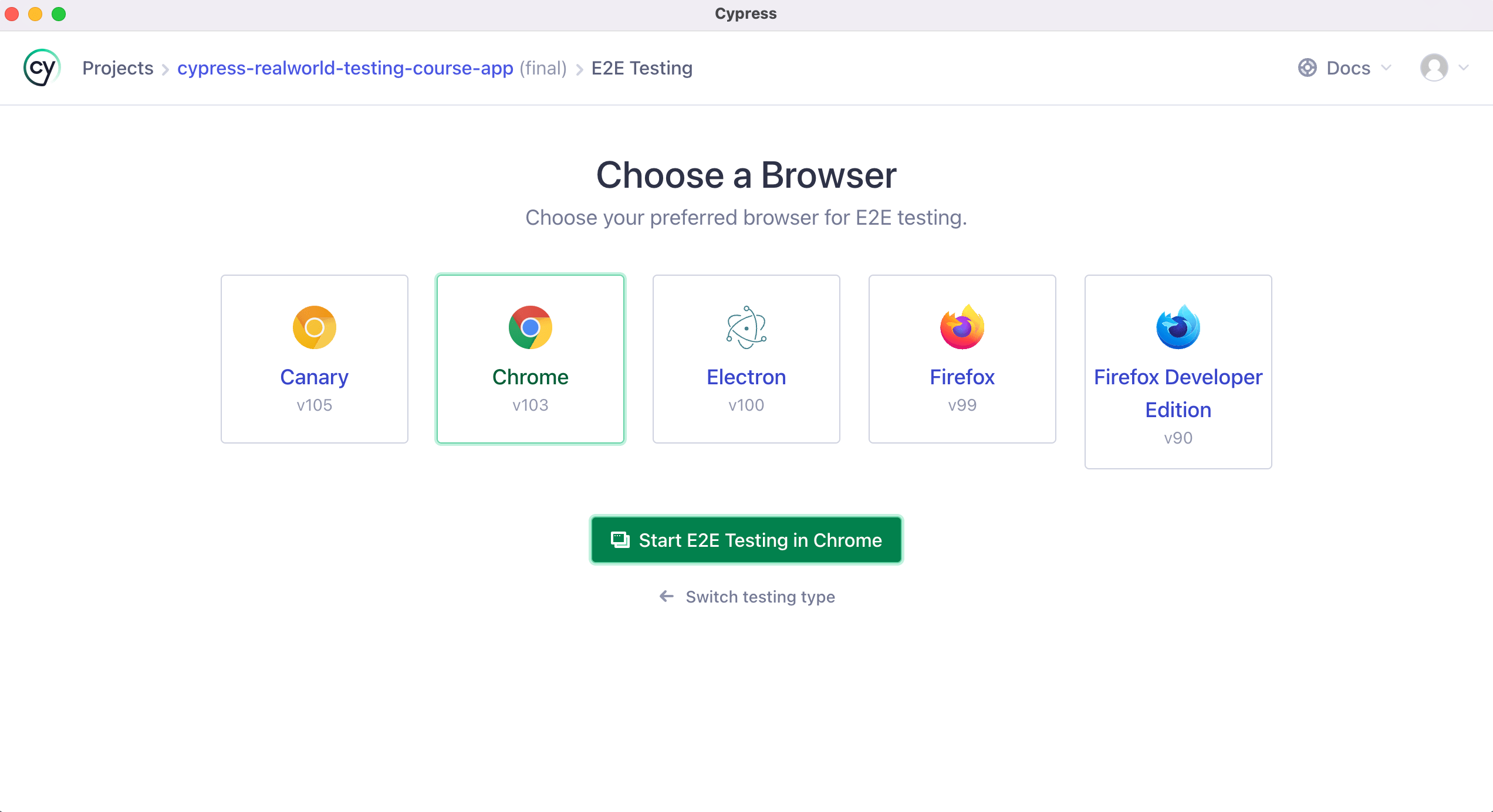
Next you will see the “Choose a Browser” screen. The options you see depend on which browsers are installed on your computer. For this course we will run all of our tests in Chrome.
info
If you do not see “Chrome” as an option, it isn't installed. You can download Chrome, then re-launch Cypress.
Click “Chrome,” then click the “Start E2E Testing in Chrome” button.
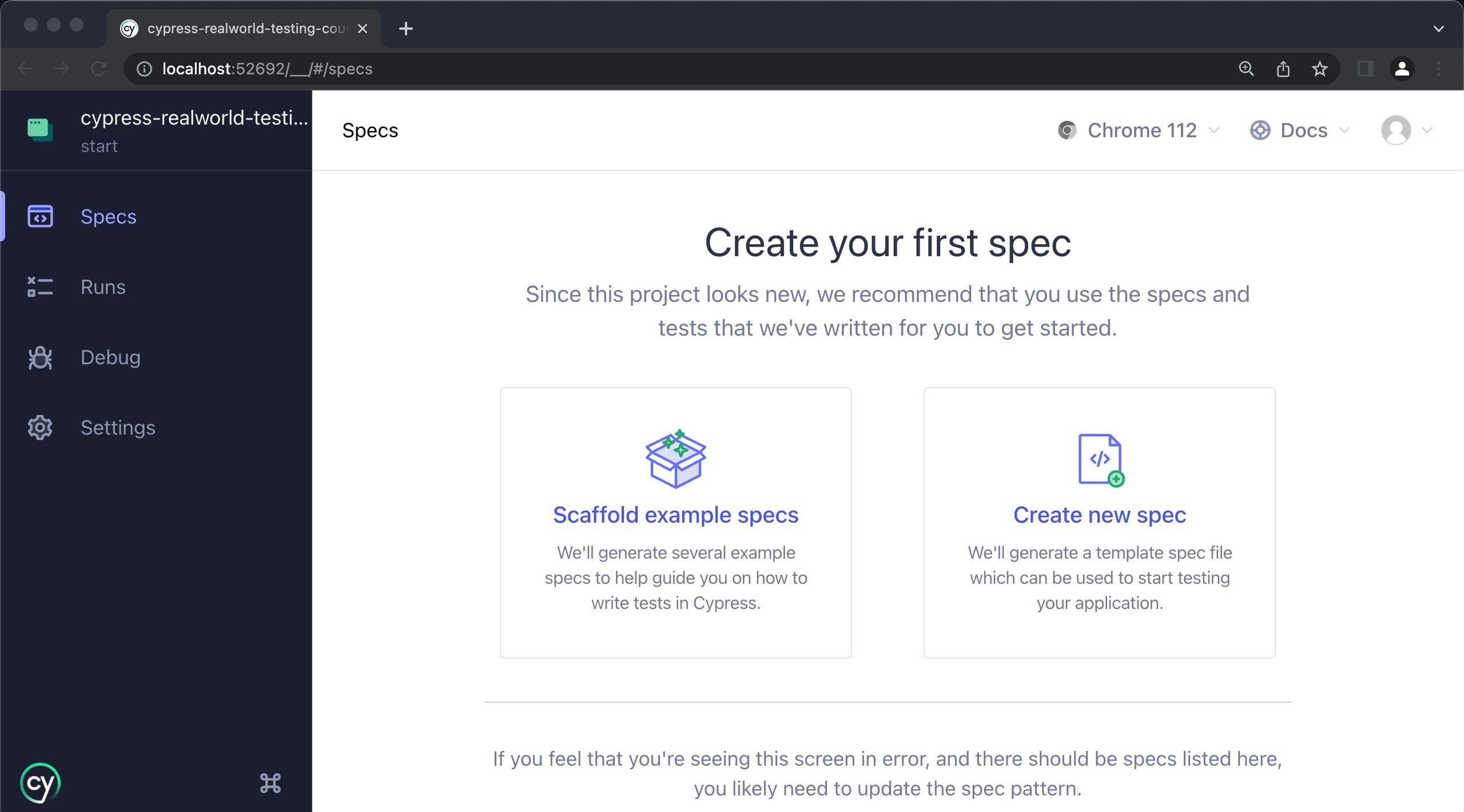
Since we don't have any test files yet, Cypress prompts us to create our first spec.
Click the “Create new spec” button.
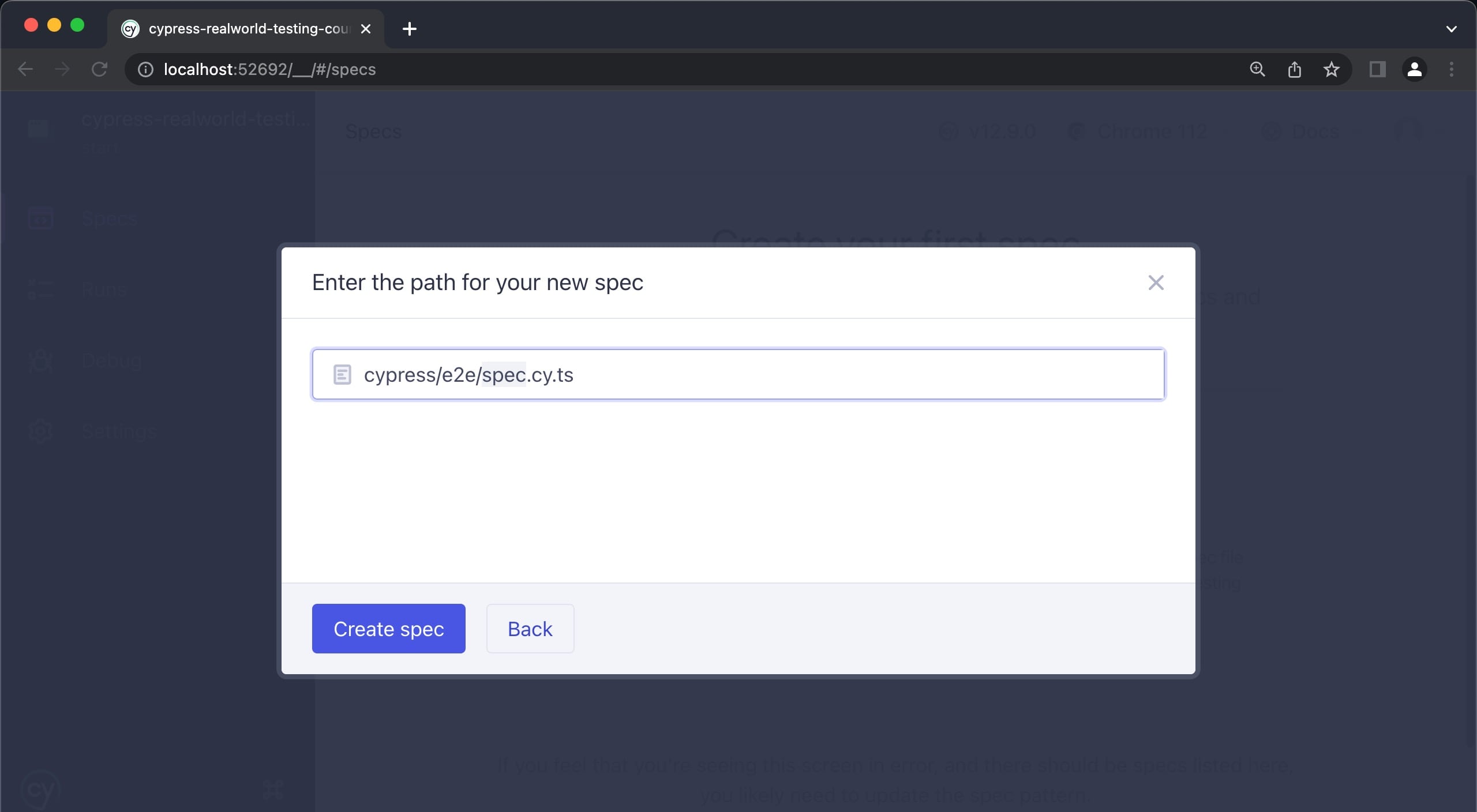
We are going to test the application's home page, so rename this file to “home.cy.ts”.
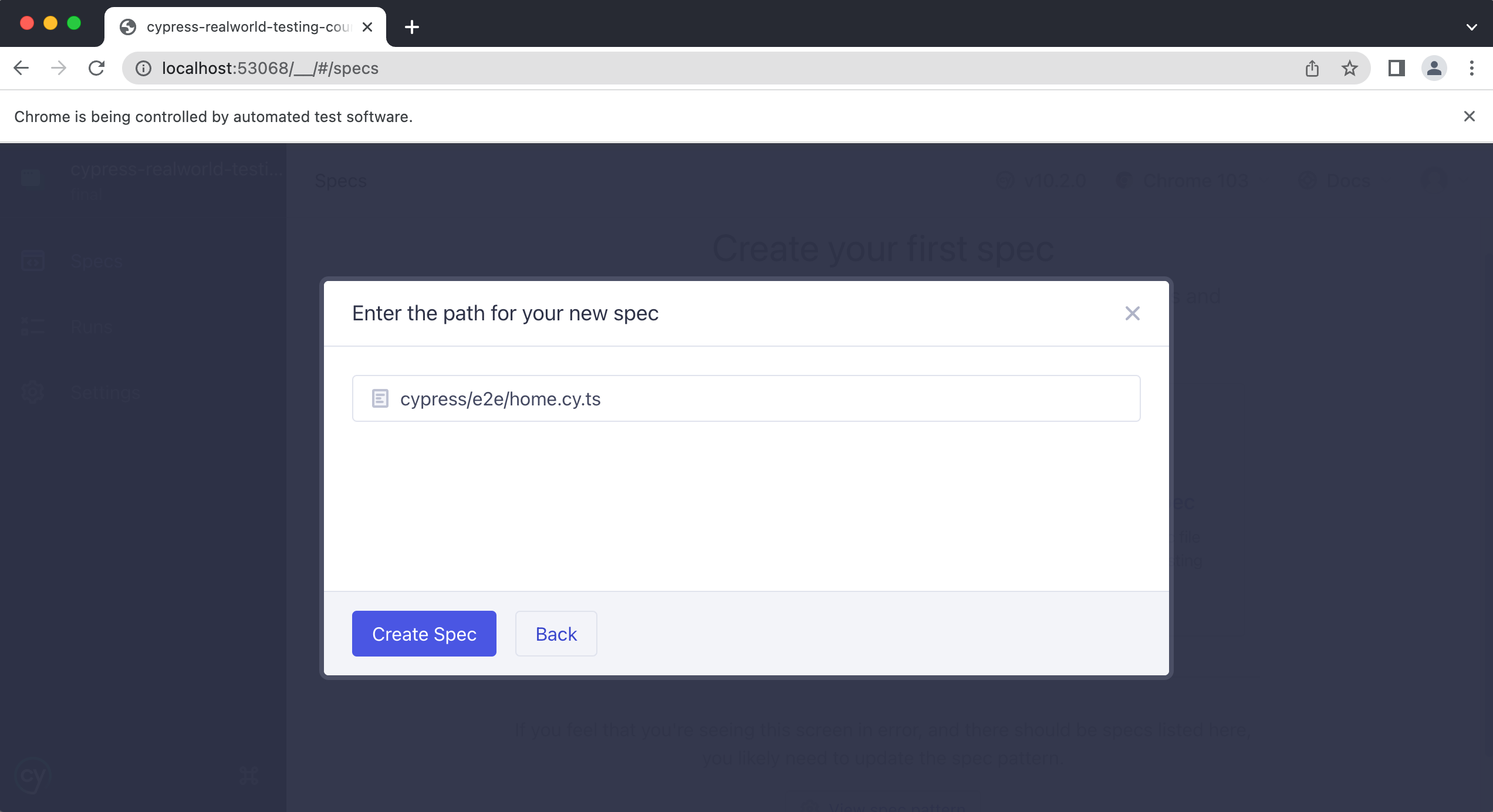
Then click “Create Spec.”
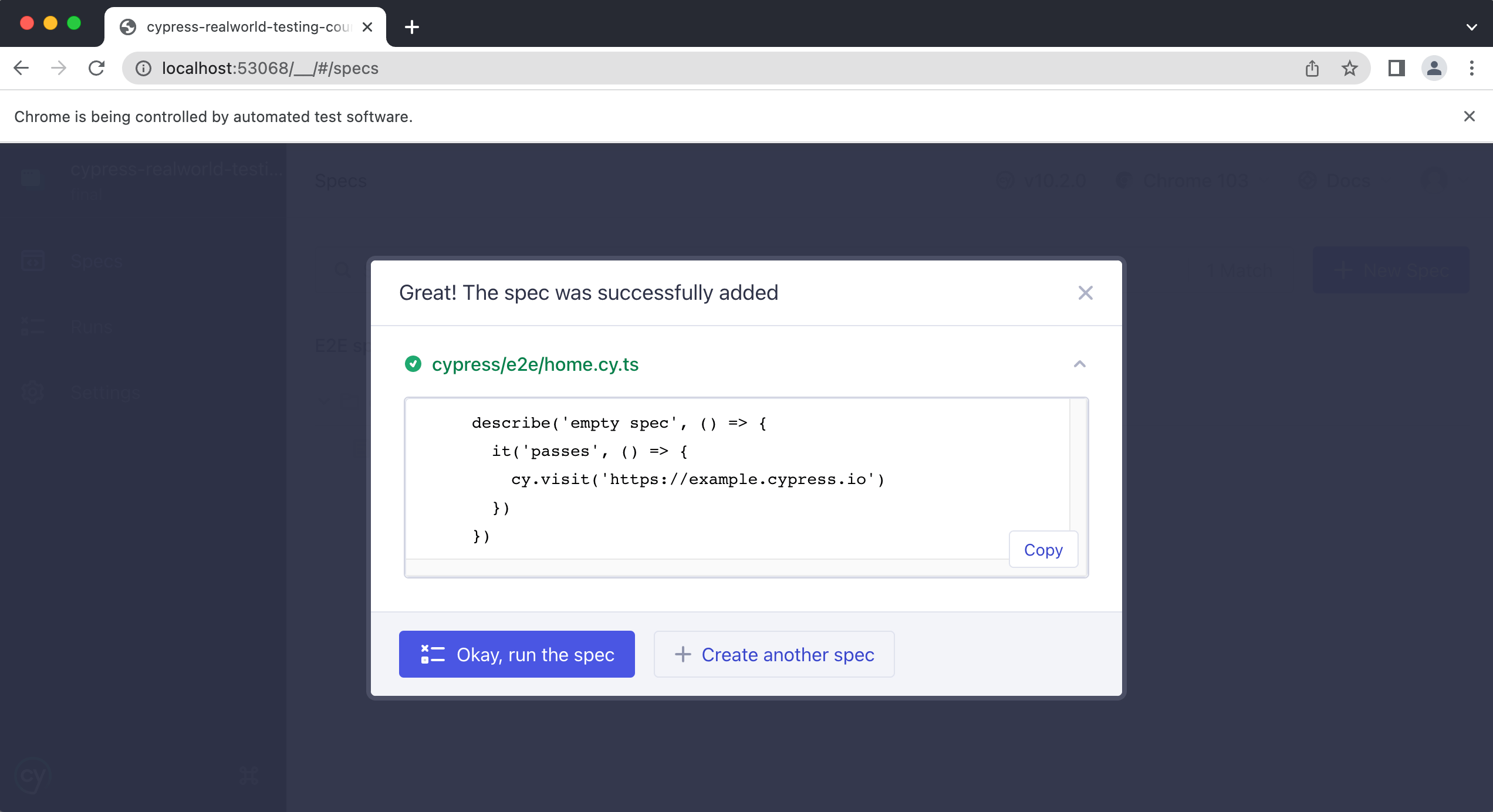
Then click the “Okay, run the spec” button.
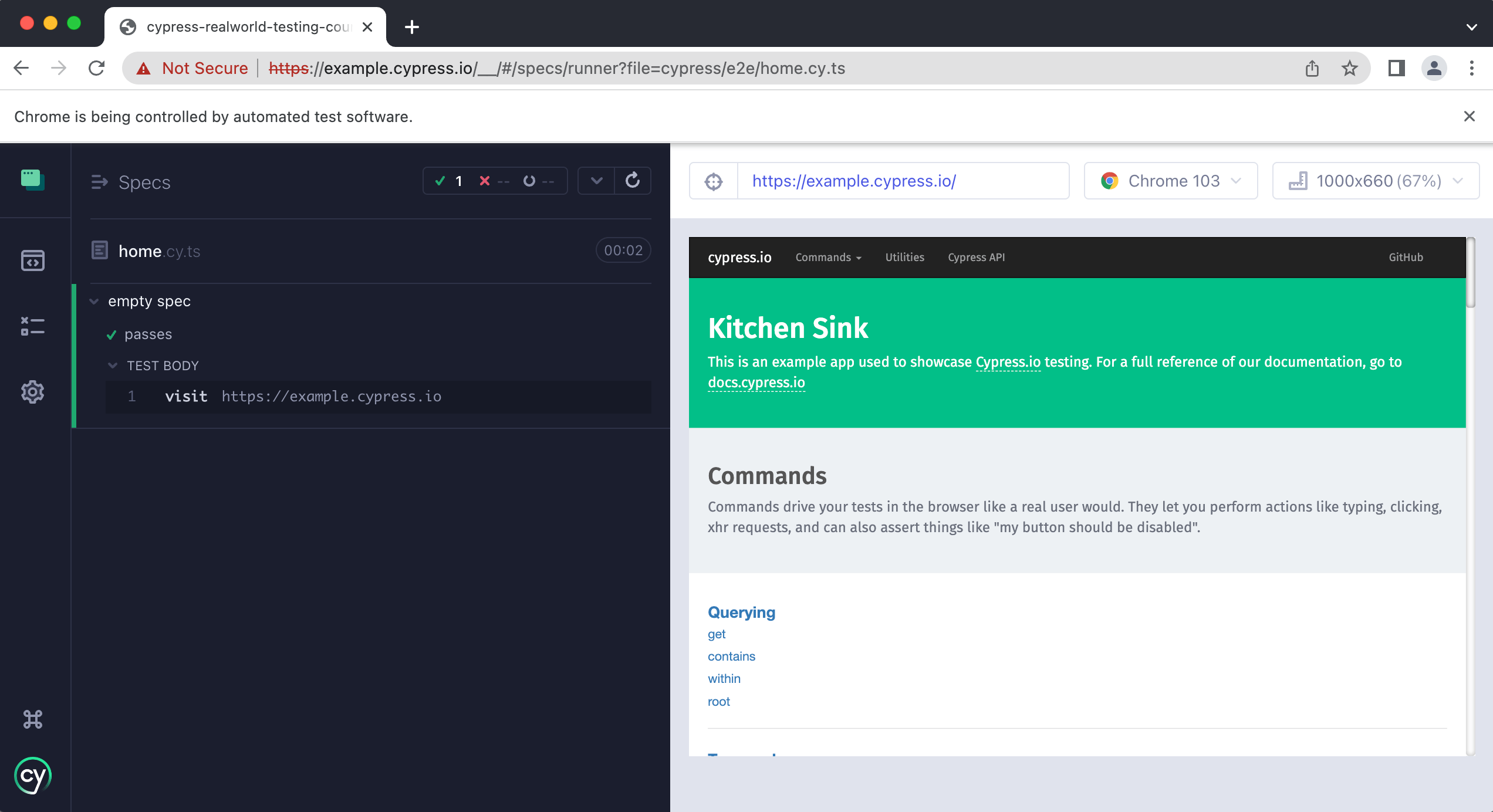
Cypress runs the new spec against its Kitchen Sink application.
Now that the spec file exists, let's update it to test our course application instead.
Breaking down the home spec file
Open the cypress/e2e/home.cy.ts file in VSCode.
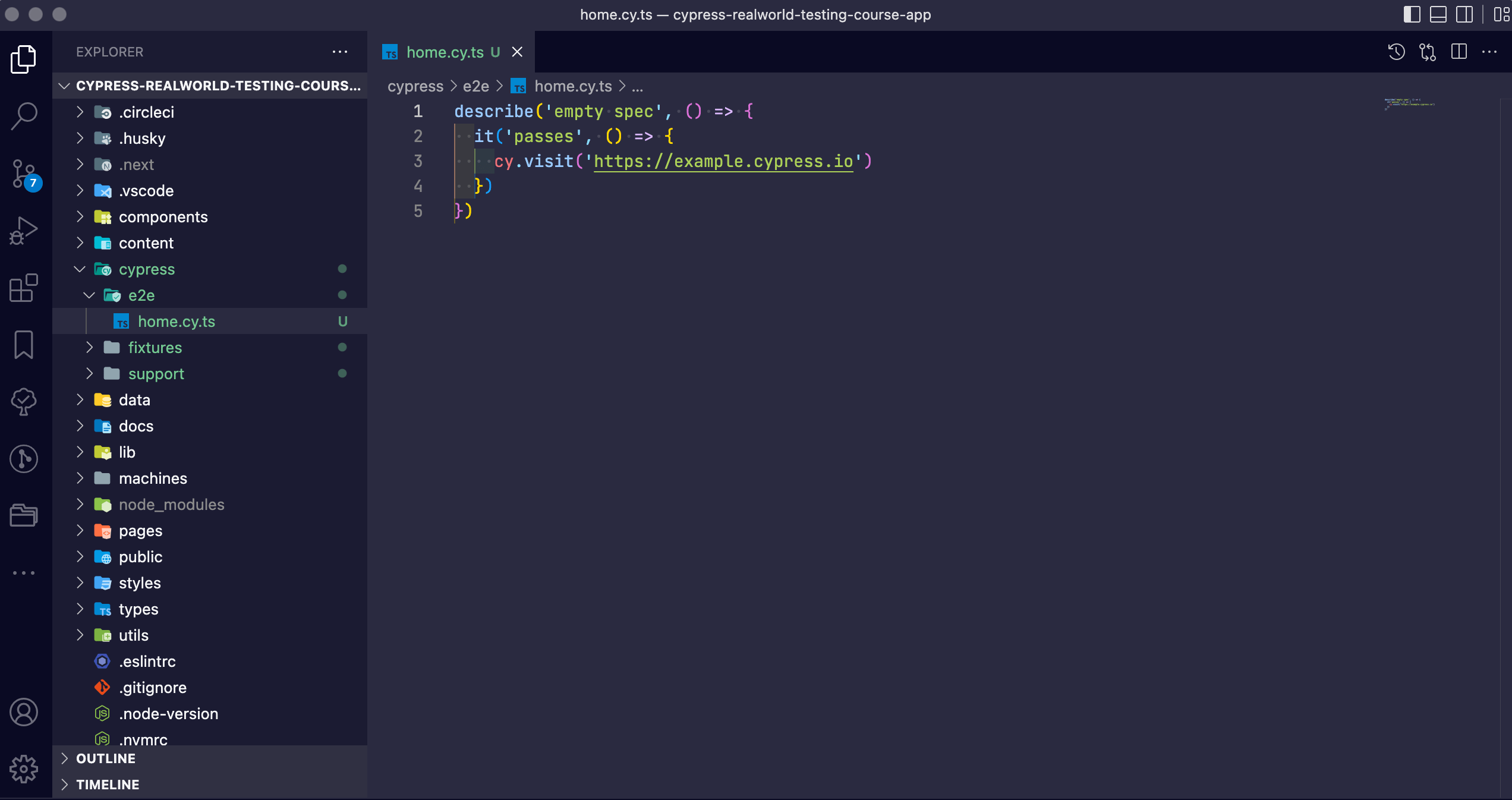
This is the default test Cypress generated for us. We will rewrite it to test our course application, but first let's walk through the code that is already here.
describe("empty spec", () => {
  it("passes", () => {
    cy.visit("https://example.cypress.io")
  })
})
The first line is what's commonly called a “describe block.”
describe("empty spec", () => {})
The describe() function takes two arguments: a string describing the tests it contains, and a callback function. Since this file will hold tests for our home page, let's change the description to “home page.”
describe("home page", () => {
  it("passes", () => {
    cy.visit("https://example.cypress.io")
  })
})
Inside the describe() body is an “it block.”
This is our actual test.
Every it() in a spec file represents a single test. It takes the same arguments as describe(): a string followed by a callback function. Let's update its description:
describe("home page", () => {
  it("the h1 contains the correct text", () => {
    cy.visit("https://example.cypress.io")
  })
})
Our first test will assert that the h1 on the home page contains the correct text (highlighted in the screenshot below).
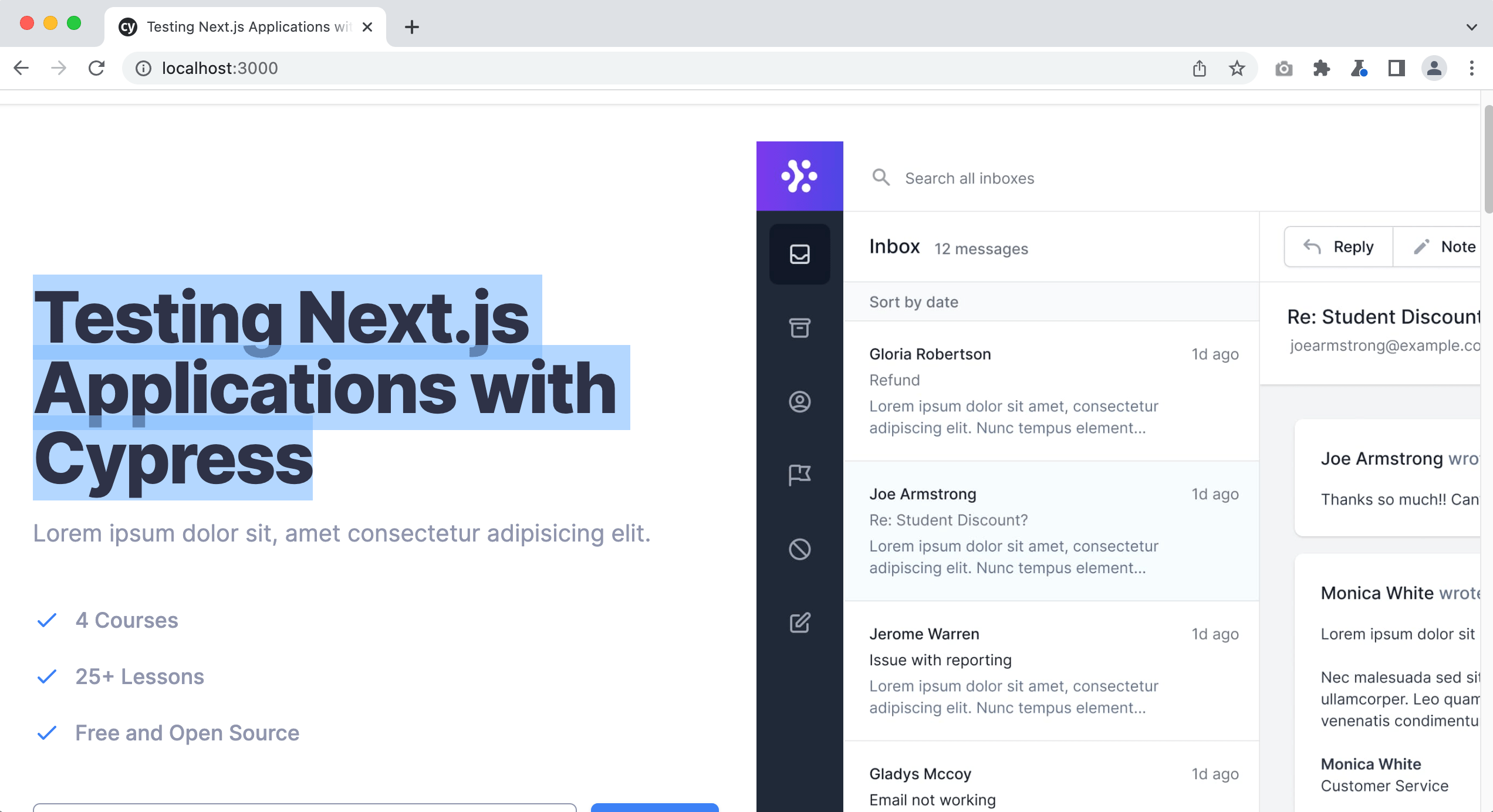
Finally, inside the it() body we have cy.visit().
visit tells Cypress which URL to load before running the test. We will run our application locally at localhost:3000, so update cy.visit() with that address.
describe("home page", () => {
  it("the h1 contains the correct text", () => {
    cy.visit("http://localhost:3000")
  })
})
info
Some screenshots in this lesson may show https://localhost:3000, but the course app runs over plain http. Use http://localhost:3000 (without the s) so your test matches the app.
Now let's run the test.
info
If Cypress is still open from earlier in this lesson, keep using that same window. There's no need to launch it again. If you closed it, relaunch Cypress from your terminal:
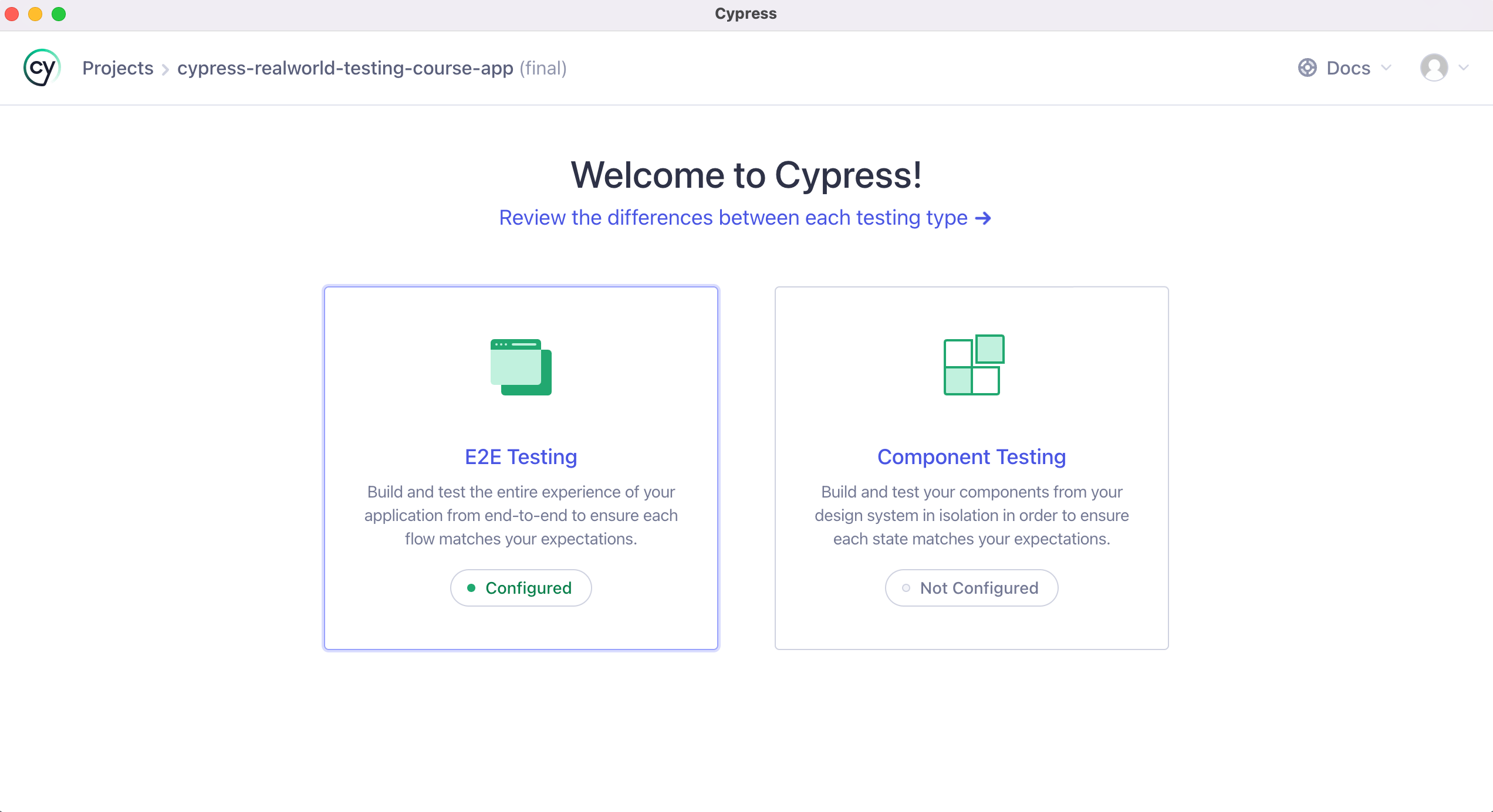
npx cypress open
Cypress can only control one browser at a time, so avoid running more than one instance at once. If a previous run is still open, close it before starting a new one.
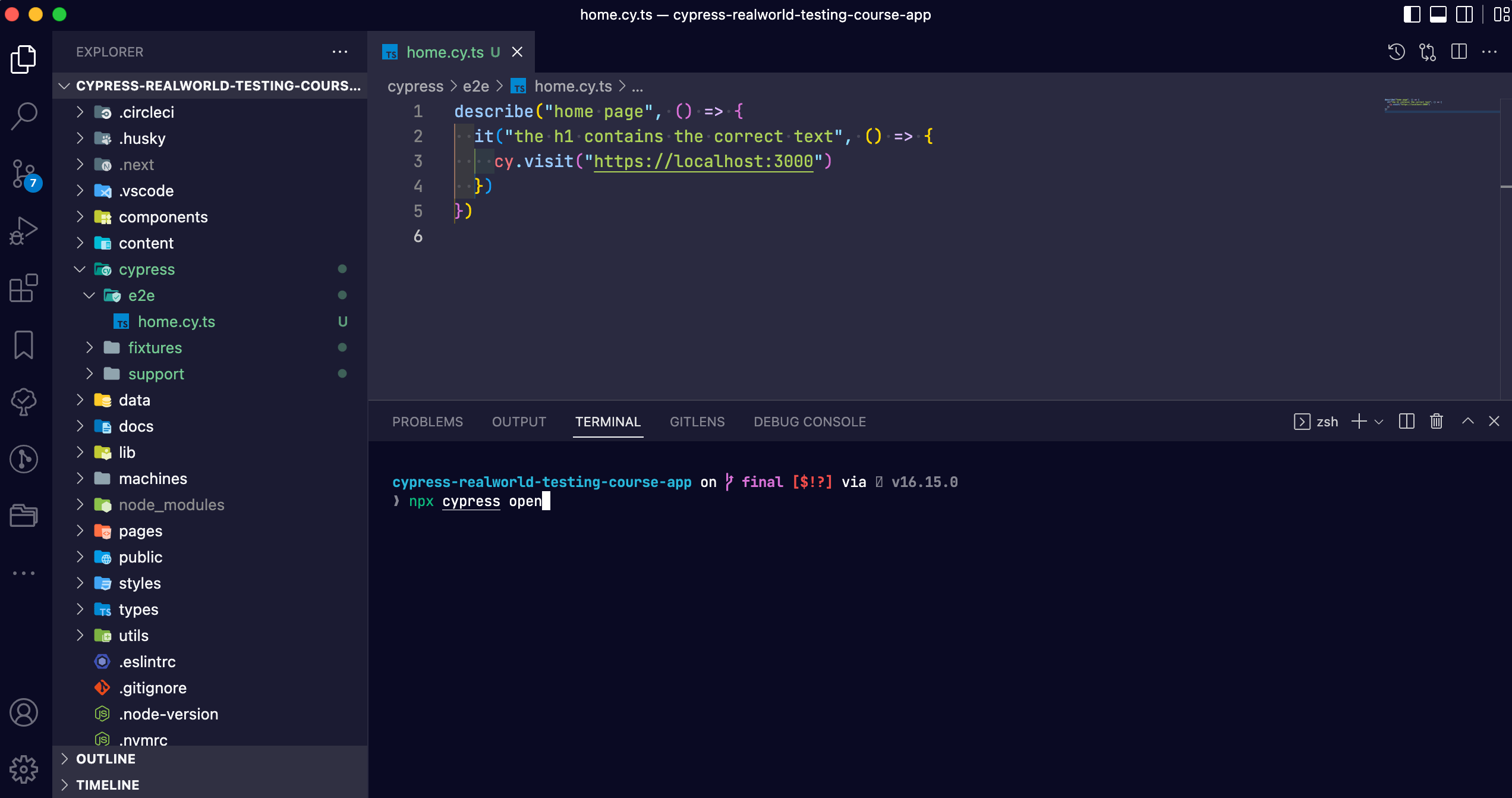
Click “E2E Testing.”
Then click “Chrome,” followed by the “Start E2E Testing in Chrome” button.
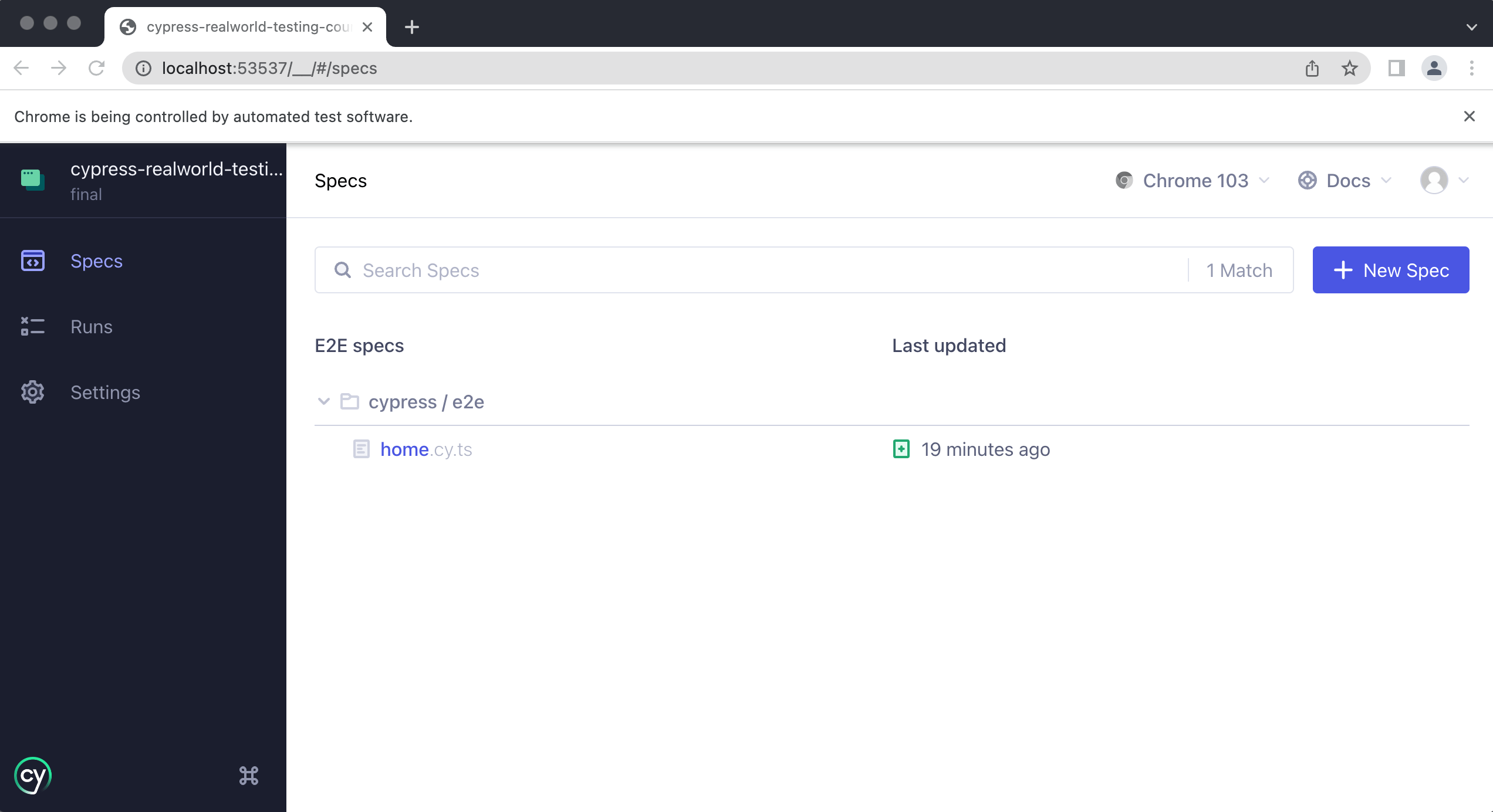
Next, click the “home.cy.ts” spec file.
You should see the following.
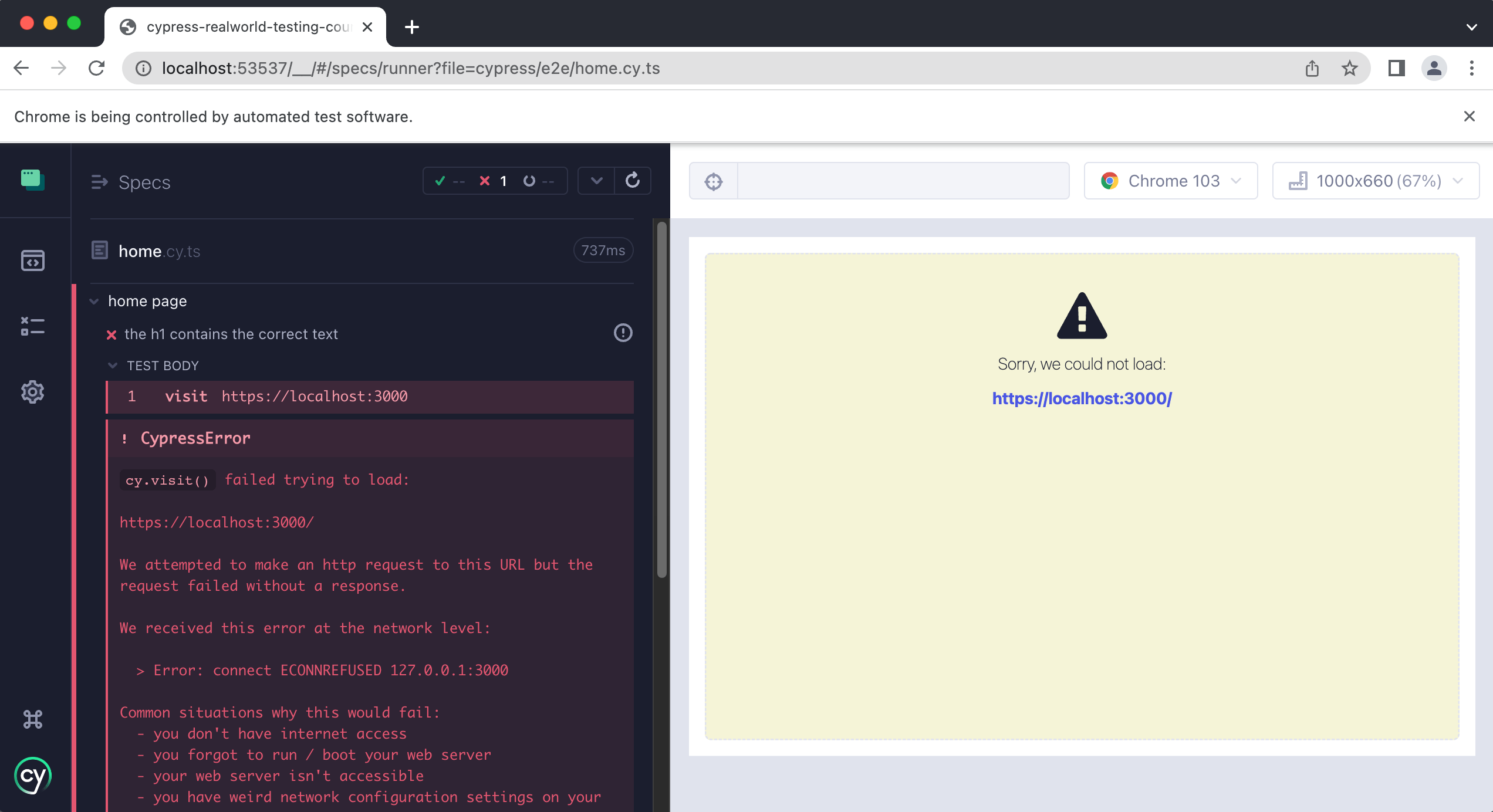
Debugging our first error
If your application's dev server is not running, Cypress can't load localhost:3000 and throws an error. Cypress always needs your app's local dev server running while your tests execute, otherwise you'll see this error.
info
If the dev server is still running from the previous lesson (you started it with npm run dev), your test is already passing and you won't see this error, so you can skim this section and continue. We're walking through it anyway because a missing dev server is one of the most common errors you'll run into, and it's worth understanding why it happens.
Cypress is currently running in our terminal:
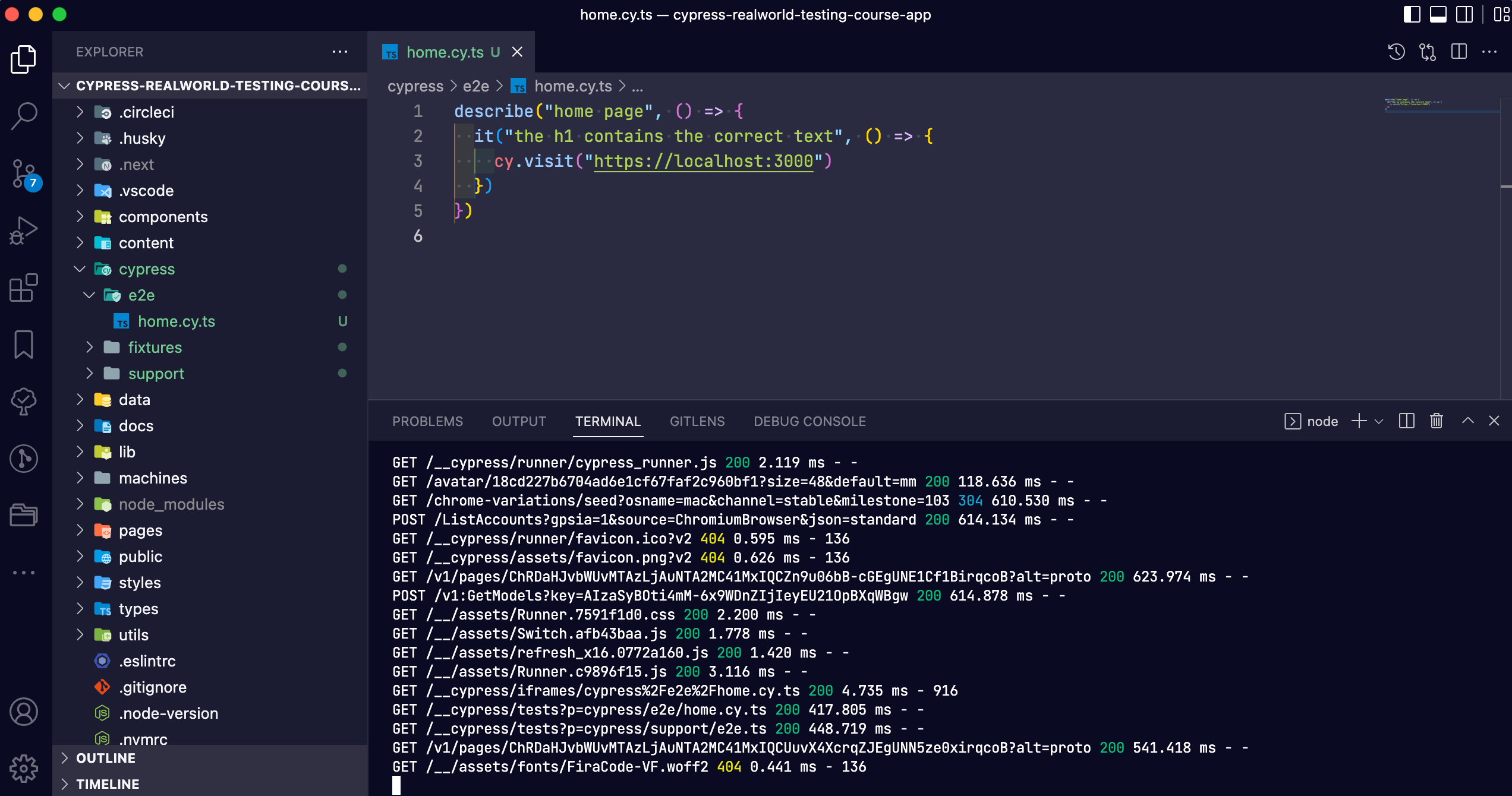
So we need a second terminal window to run the dev server. In VSCode, open one via Terminal > New Terminal in the menu bar.
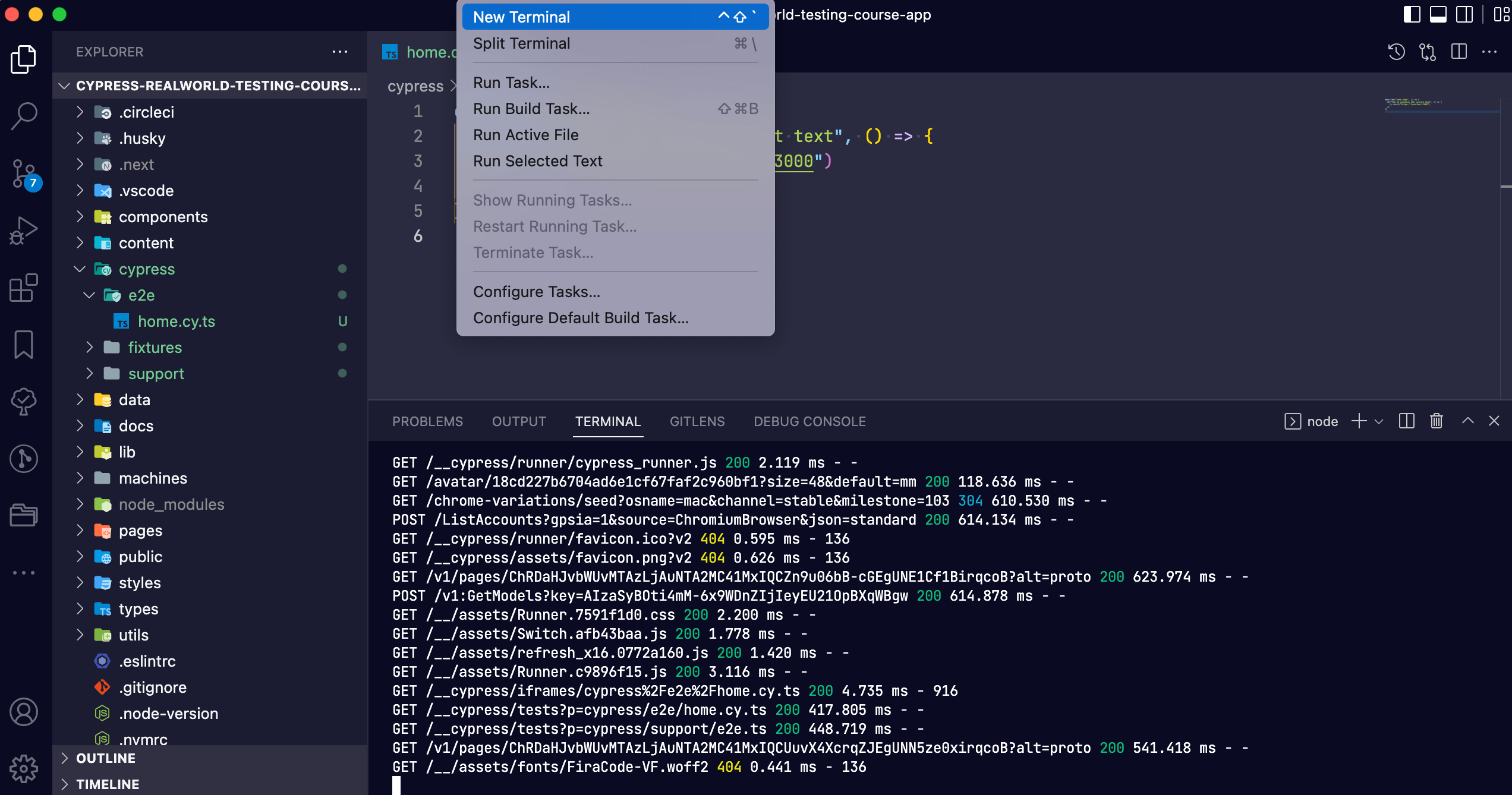
This opens a new terminal inside VSCode along with a small sidebar on the right. You can switch between terminals by clicking the icons in that sidebar.
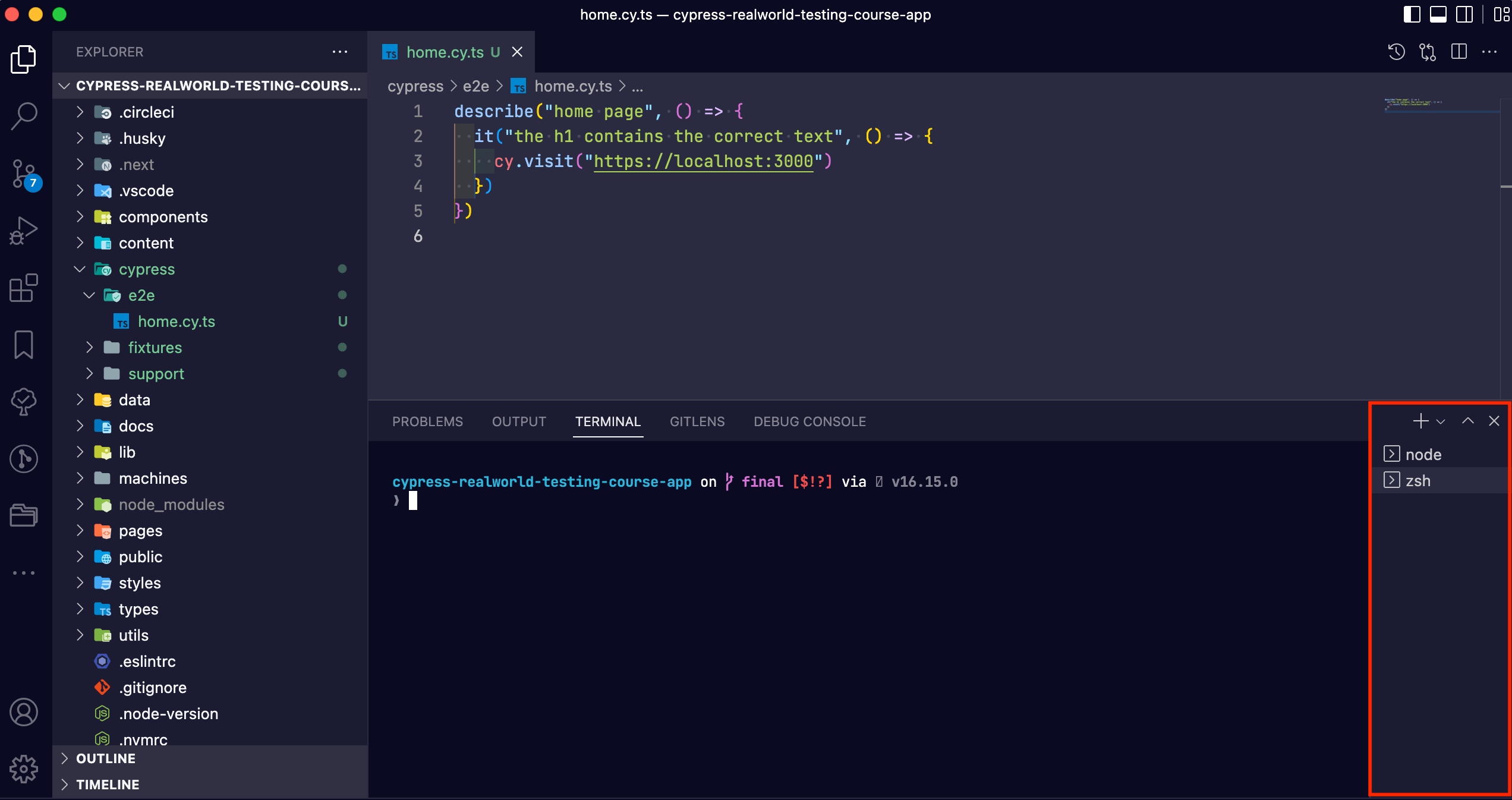
In the new terminal, start the dev server:
npm run dev
Then return to the Cypress App and re-run the test by clicking the “Run all tests” button at the top.
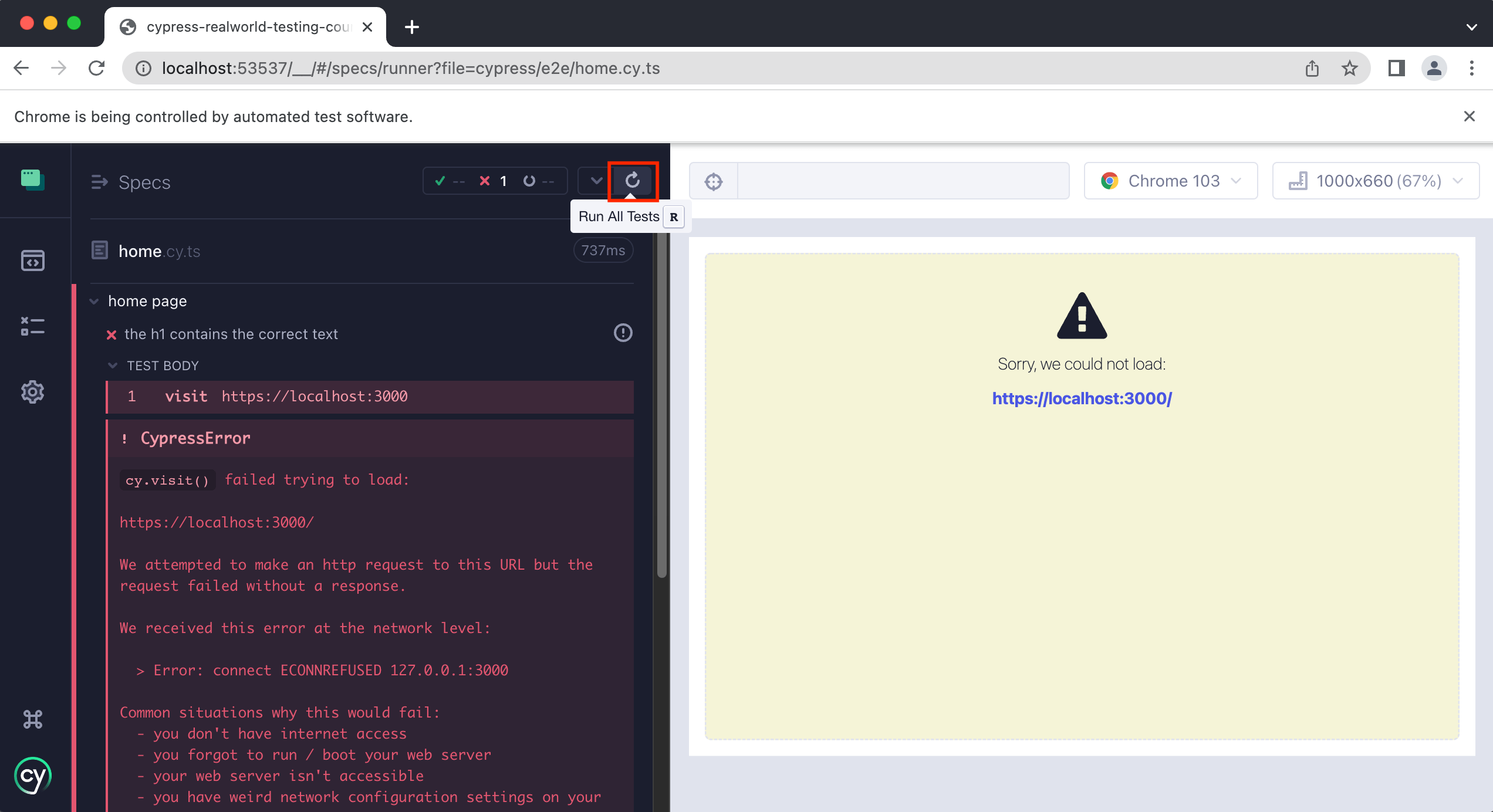
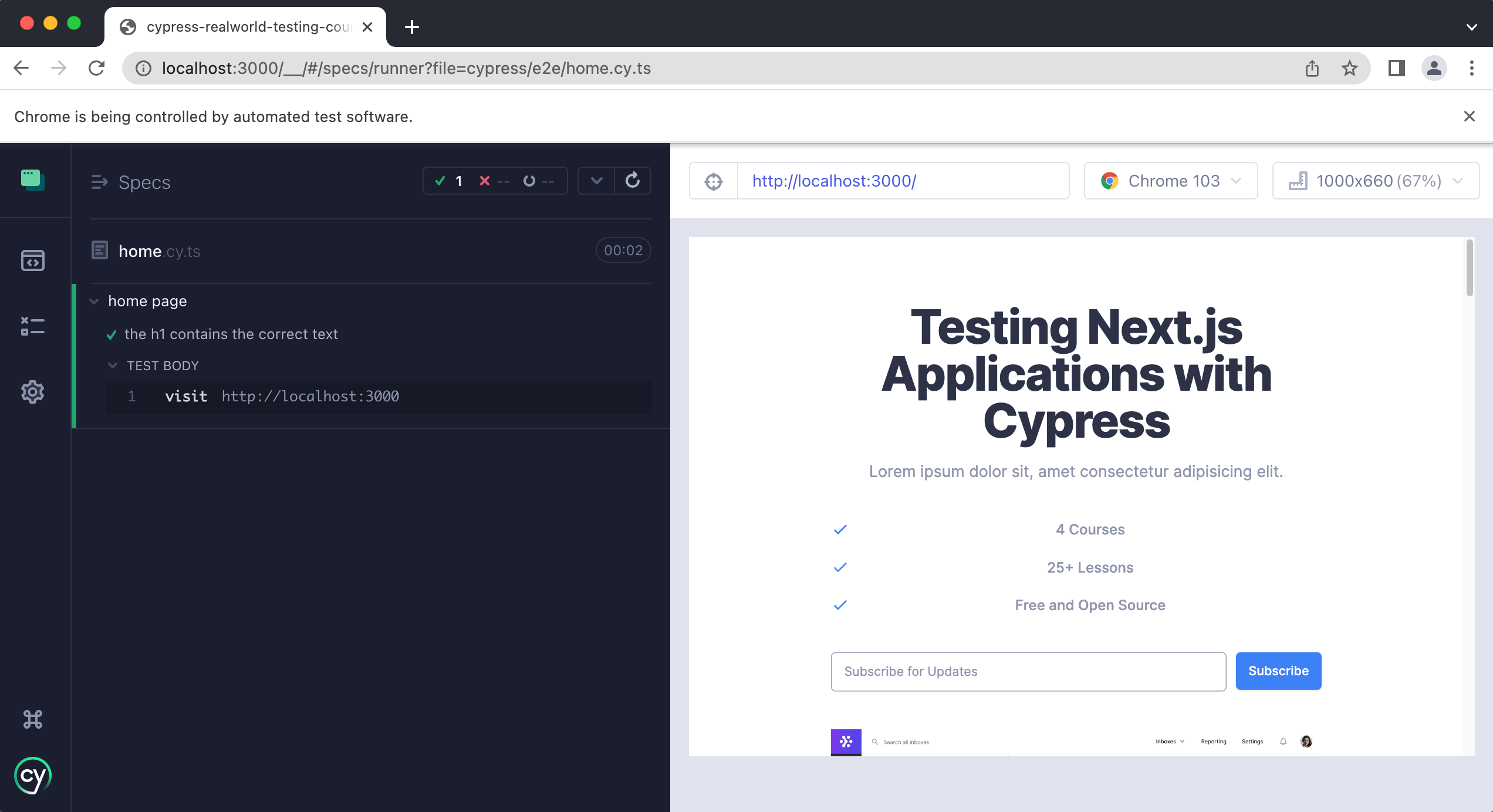
You can also press r for the same result. Once the test re-runs, it should pass.
Testing the h1 on the home page
Now that we understand the basic makeup of a spec file and a test, let's write the test that verifies the h1 on the home page contains the correct text.
First we need to tell Cypress which element to grab, which in this case is the h1.
A page should only have a single h1 when following SEO best practices, which is true of our application. That means we can grab it with the .get() command:
describe("home page", () => {
  it("the h1 contains the correct text", () => {
    cy.visit("http://localhost:3000")
    cy.get("h1")
  })
})
tip
Each time you save your spec file, Cypress automatically re-runs every test in it. This lets you iterate quickly and confirm your tests are working.
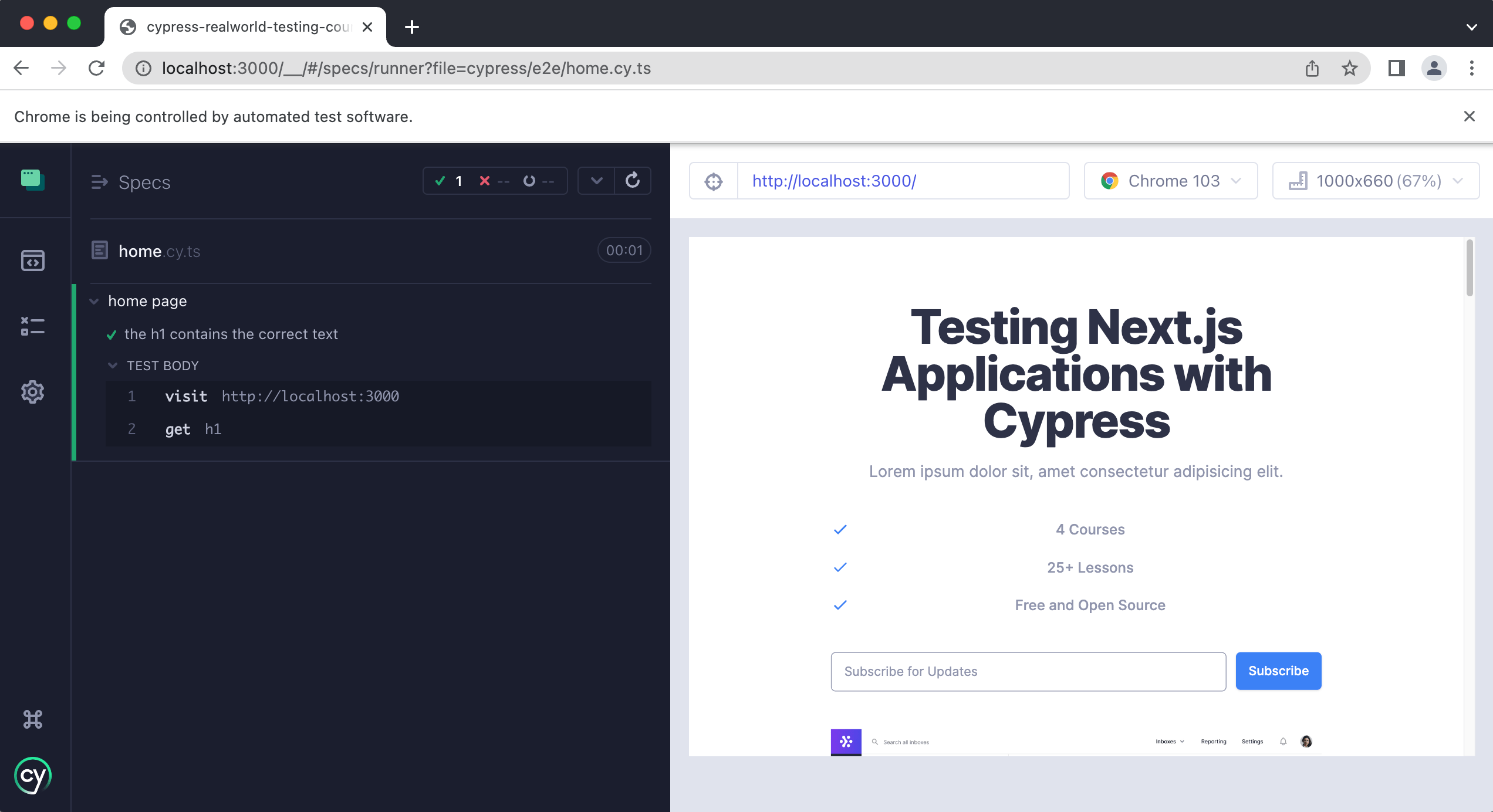
On the left side of the screen, the Cypress command log shows every step taken during the test.
- Step 1 is
cy.visit()loading the application's home page. - Step 2 is
cy.get()grabbing theh1.
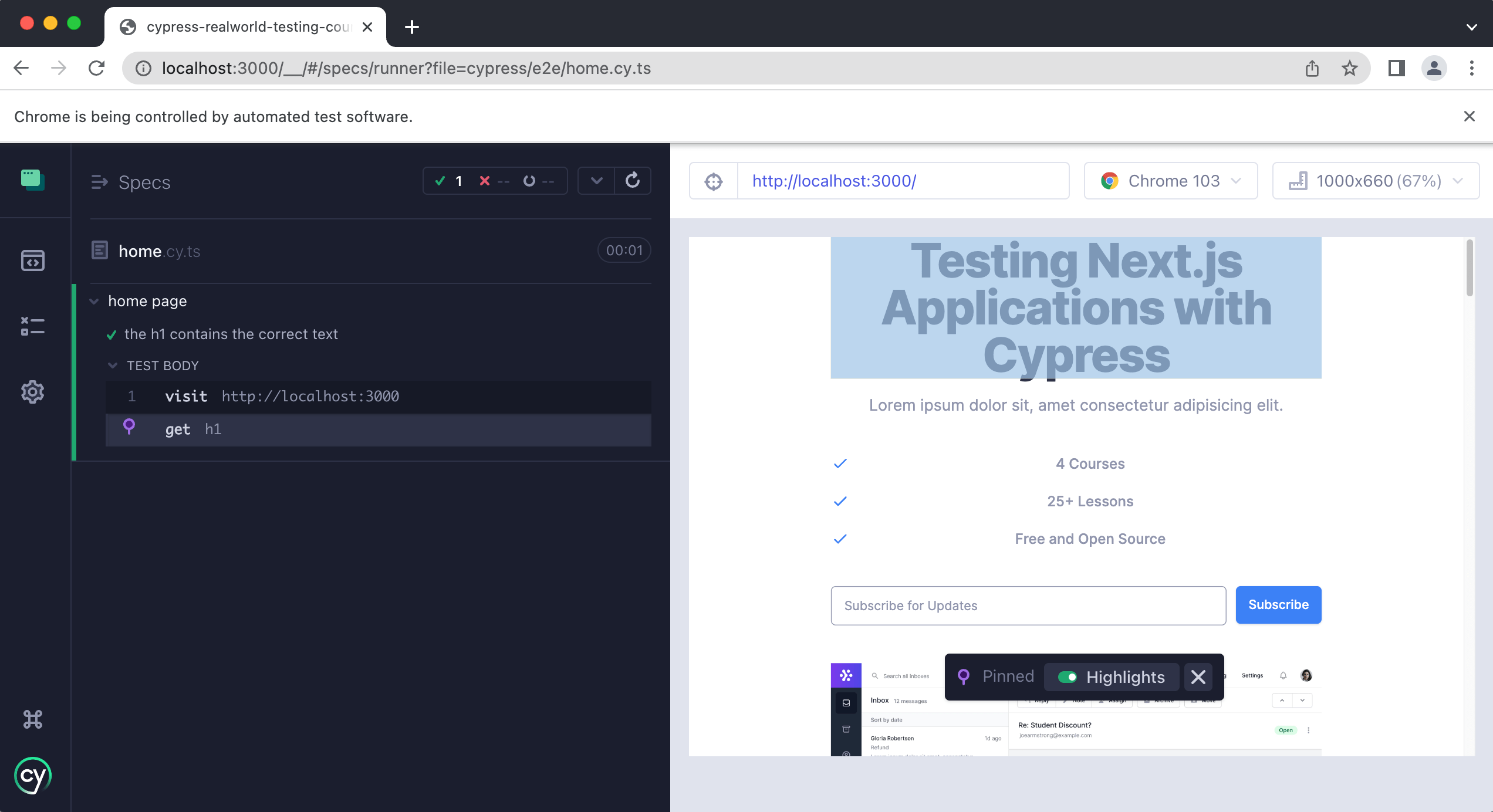
Click any step to see exactly what Cypress was doing at that moment. This is called “time travel debugging,” since you can go back in time and inspect each step.
If you click step 2, Cypress highlights the h1 on the right, showing the element it grabbed.
Now that we have the correct element, we can assert that its text is correct:
describe("home page", () => {
  it("the h1 contains the correct text", () => {
    cy.visit("http://localhost:3000")
    cy.get("h1").contains("Testing Next.js Applications with Cypress")
  })
})
Save the file, and the test should still be passing in Cypress.
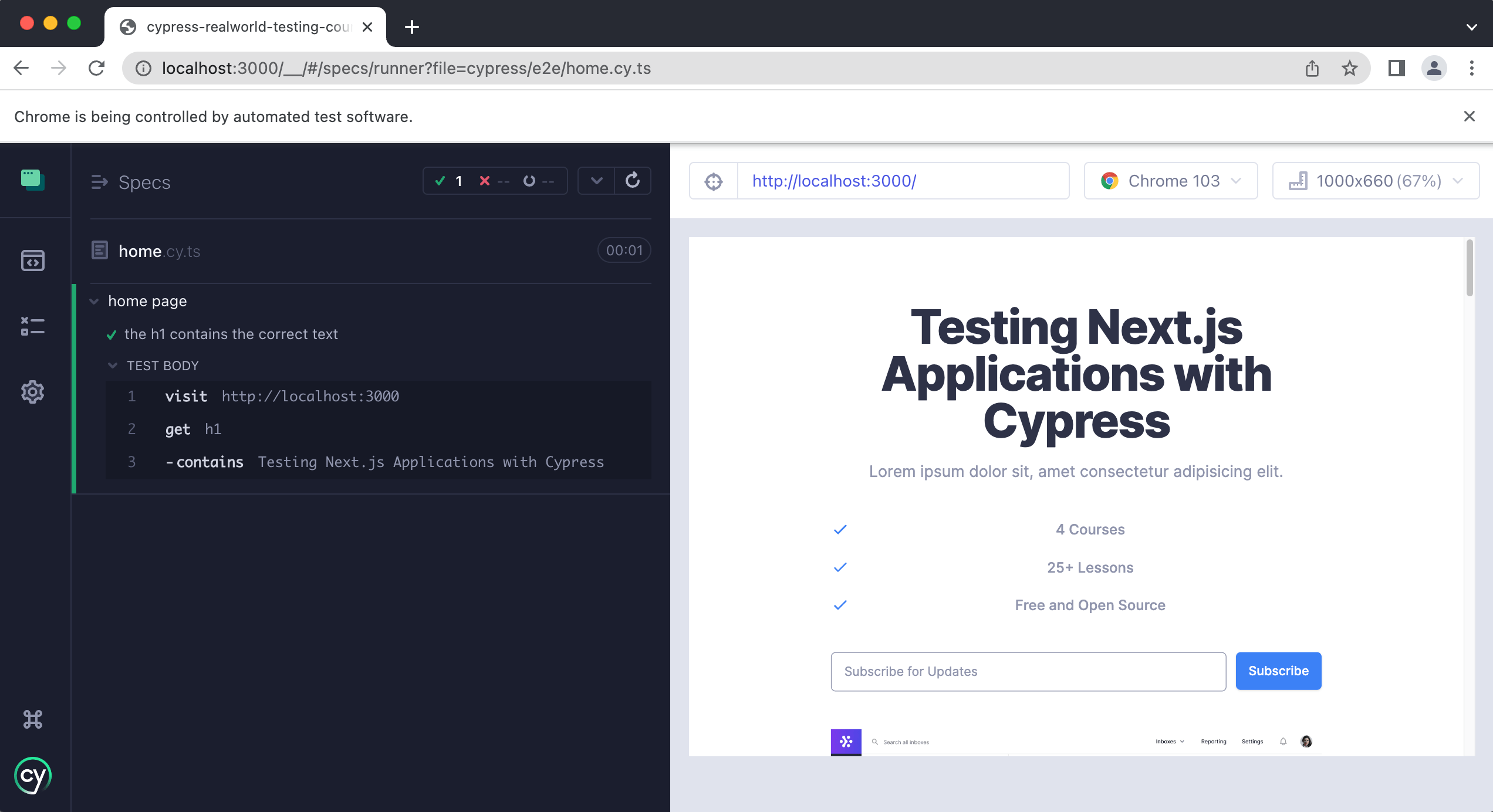
Congratulations! You just wrote your first Cypress E2E test 🎉
Aside: Command Chaining
Let's take a closer look at this line:
cy.get("h1").contains("Testing Next.js Applications with Cypress")
First, cy.get() grabs the h1 element on our home page.
Then we chain the contains command onto it, passing in the text we expect to find inside the h1.
Command chaining means calling one command on the result of another. It's a powerful pattern that appears constantly in Cypress tests, and you'll use it many times throughout this course, so we wanted to point it out early.
To learn more, see our dedicated lesson on command chaining.
Aside: Getting elements best practices
Even though we're just getting started, it's important to pick up some best practices along the way.
In our first test, we grab the h1 by passing the element name directly to Cypress:
cy.get("h1")
This works (our test is passing), but it isn't ideal.
Why?
If you read the get command API documentation, you'll see it accepts many things: HTML elements, classes like .button, IDs like #button, and more. At Cypress, we believe you should target elements using things that don't change.
What do we mean?
Classes and IDs are typically used for styling and for targeting elements with JavaScript, and both tend to change over time. If your tests rely on them, your tests will break when they change.
To avoid this, we recommend using data attributes on your elements. In this course we'll use data-test attributes specifically. These are attributes that exist solely for testing. They won't change when your site's design changes, because they aren't tied to class names or IDs.
tip
To learn more, read our best practices for selecting elements.
Updating our get selector
Now that you've learned about data test attributes, let's update our test to use one in practice.
Our test currently looks like this:
describe("home page", () => {
  it("the h1 contains the correct text", () => {
    cy.visit("http://localhost:3000")
    cy.get("h1").contains("Testing Next.js Applications with Cypress")
  })
})
We're going to replace cy.get("h1") with a data-test selector. If we open Chrome's dev tools and inspect the heading, we'll see this markup:
<h1
  data-test="hero-heading"
  class="mt-4 text-4xl font-extrabold tracking-tight text-white sm:mt-5 sm:text-6xl lg:mt-6 xl:text-6xl"
>
  <span class="block text-gray-900"
    >Testing Next.js Applications with Cypress</span
  >
</h1>
The element has data-test="hero-heading", which we can use inside cy.get():
describe("home page", () => {
  it("the h1 contains the correct text", () => {
    cy.visit("http://localhost:3000")
    cy.get("[data-test='hero-heading']").contains(
      "Testing Next.js Applications with Cypress"
    )
  })
})
Save the test, and it should still be passing.
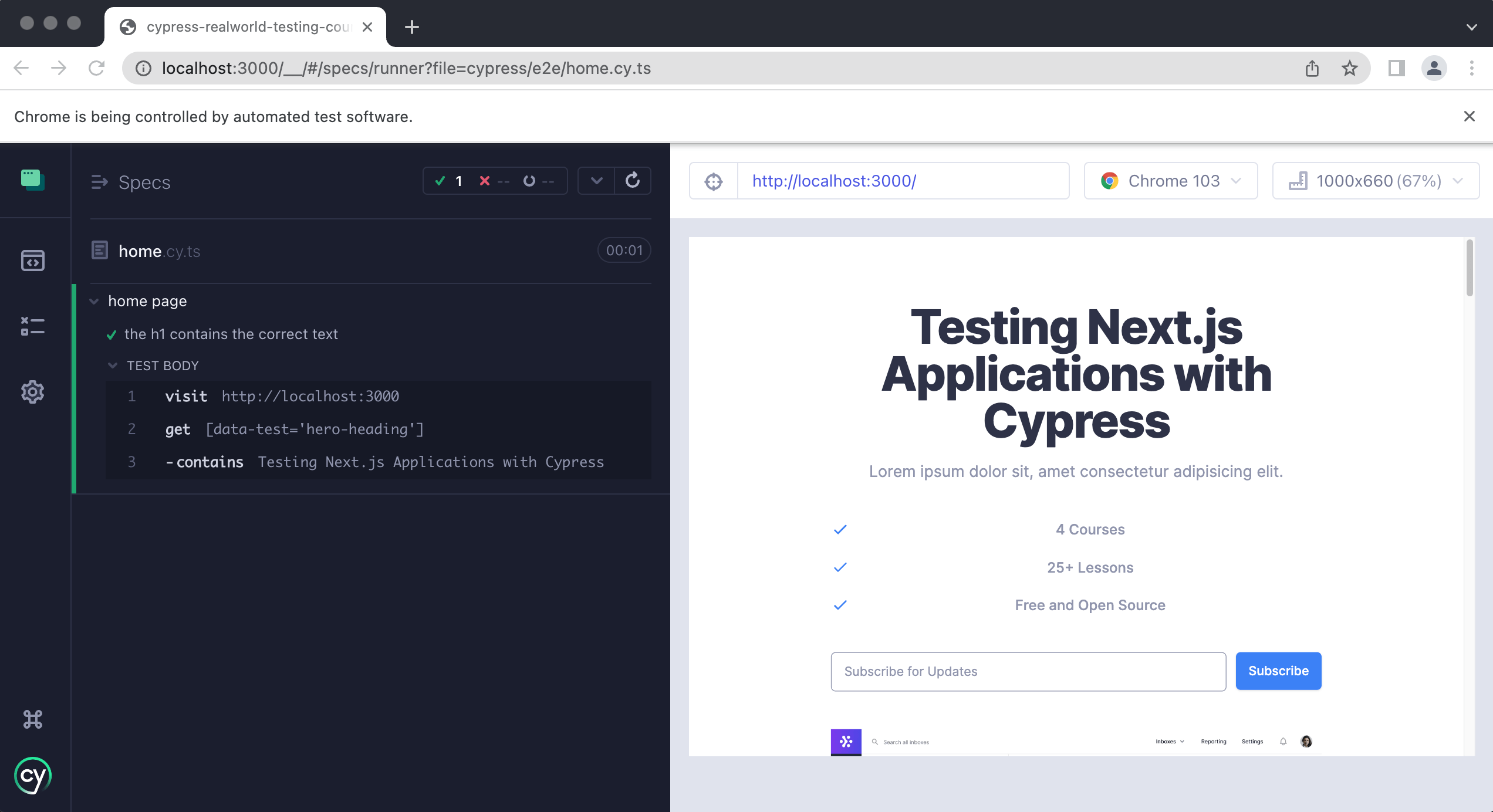
You may be thinking that cy.get("[data-test='hero-heading']") is pretty verbose. That's fine for now with a single test, but imagine using cy.get() like this across hundreds of tests.
We'll clean this up soon and make data-test attributes much easier to work with in the next lesson, when we cover custom Cypress commands. Hold on a little longer!
Testing the course features
Next, we'll write one more test in this lesson to verify that the features in our homepage hero are correct.
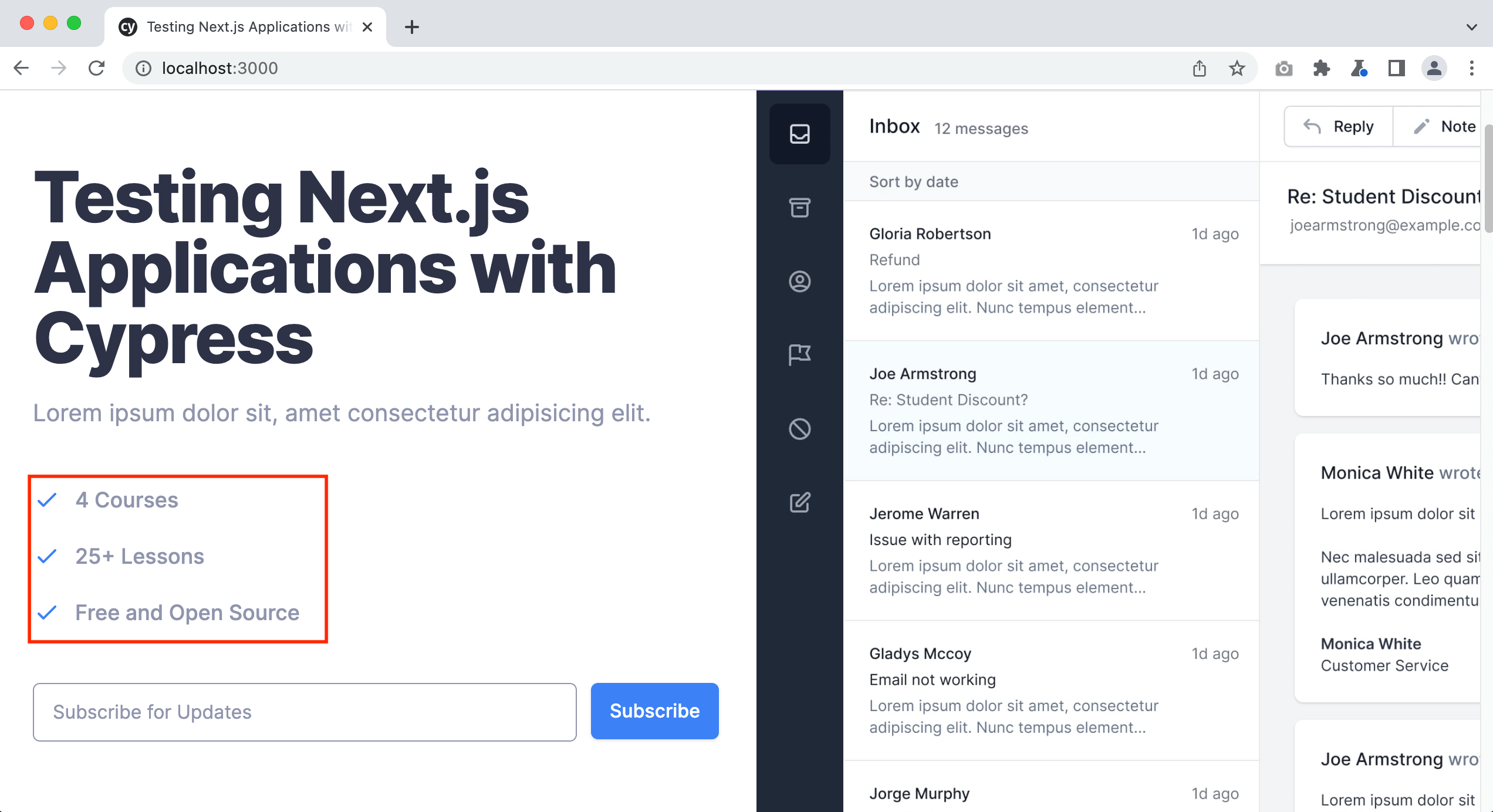
Using dev tools to inspect one of these features reveals the following markup:
<div class="relative mb-6">
  <dt>
    <svg
      xmlns="http://www.w3.org/2000/svg"
      fill="none"
      viewBox="0 0 24 24"
      stroke-width="2"
      stroke="currentColor"
      aria-hidden="true"
      class="absolute w-6 h-6 text-blue-500"
    >
      <path
        stroke-linecap="round"
        stroke-linejoin="round"
        d="M5 13l4 4L19 7"
      ></path>
    </svg>
    <p class="text-lg font-medium leading-6 text-gray-500 ml-9">4 Courses</p>
  </dt>
  <dd class="mt-2 text-base text-gray-500 ml-9"></dd>
</div>
There aren't any data-test attributes, or anything else specific, we can pass to cy.get() to target these elements. We always recommend using data attributes when you can, but sometimes you don't control the underlying markup.
For example, when you use a third-party component library, you usually can't modify its HTML to add custom attributes. So what do you do then?
What's the best way to grab these elements?
Let's create a new test just below our first one.
it("the features on the homepage are correct", () => {
  cy.visit("http://localhost:3000")
})
info
Notice that each test has to tell Cypress where to navigate in our application.
Run the test and make sure everything passes.
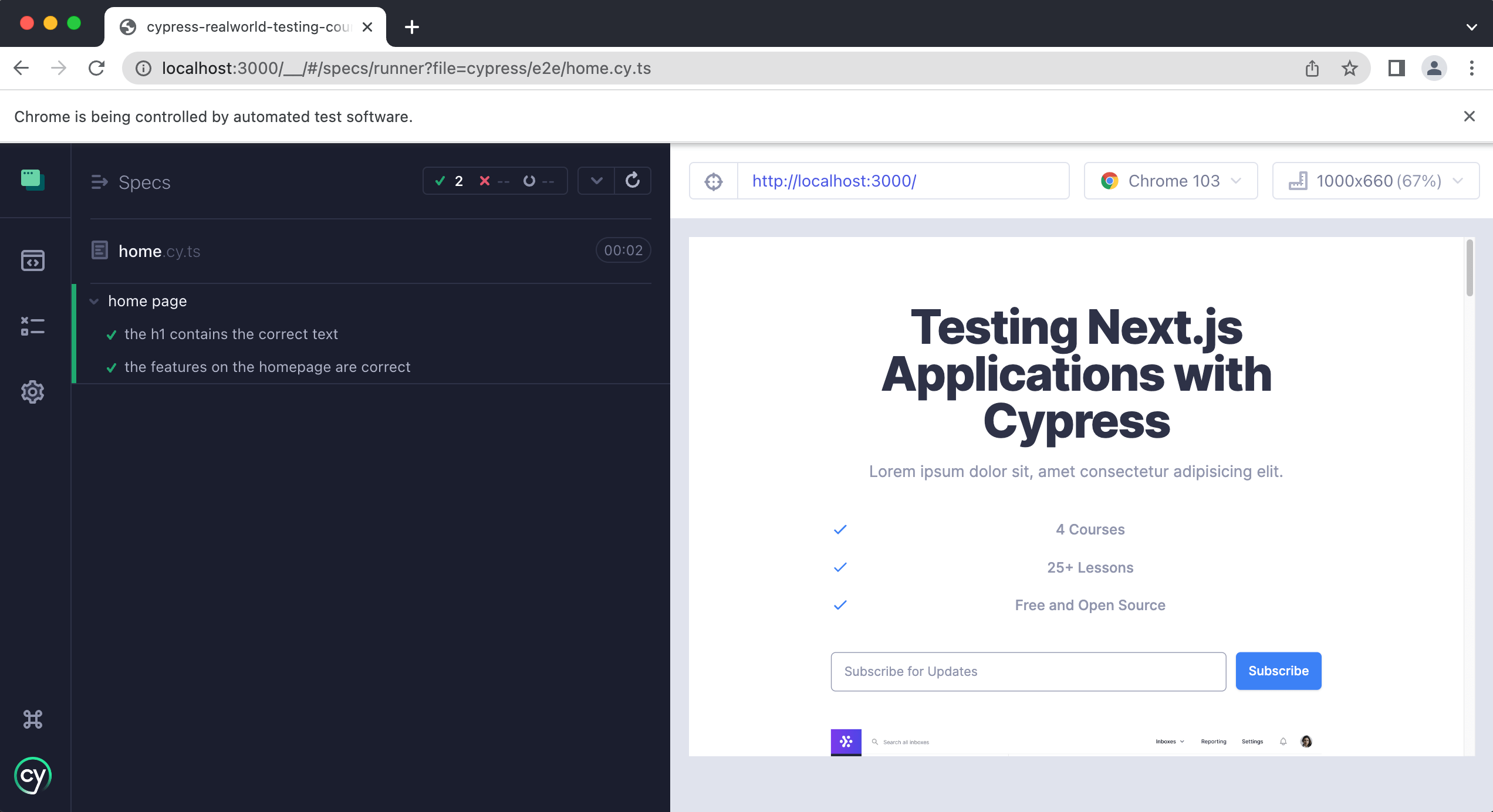
Using only to run a single test
Now that we have two tests, Cypress re-runs both every time we save. That's fine with a couple of tests, but what about a spec file with dozens of them? Each save would mean waiting for every test to finish, even though we usually only care about the one we're currently writing.
We can tell Cypress to run a single test using it.only():
describe("home page", () => {
  it("the h1 contains the correct text", () => {
    cy.visit("http://localhost:3000")
    cy.get("[data-test='hero-heading']").contains(
      "Testing Next.js Applications with Cypress"
    )
  })

  it.only("the features on the homepage are correct", () => {
    cy.visit("http://localhost:3000")
  })
})
Adding .only() after it tells Cypress to run only that test.
tip
You can add .only() to multiple tests, and Cypress will run only those.
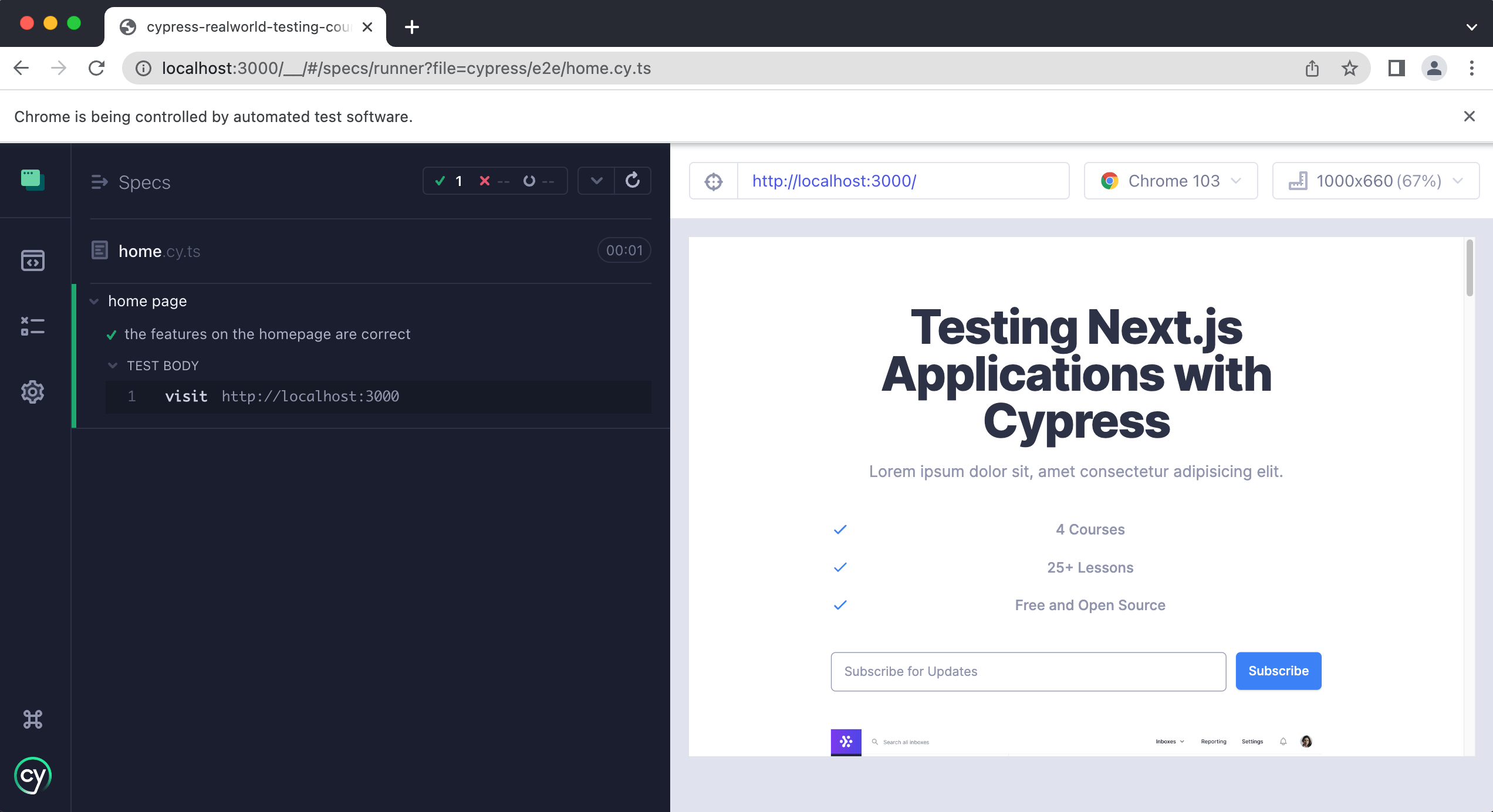
As you can see, only the features test runs now.
Next, let's use cy.get() to grab the <dt> element and see what happens.
it.only("the features on the homepage are correct", () => {
  cy.visit("http://localhost:3000")
  cy.get("dt")
})
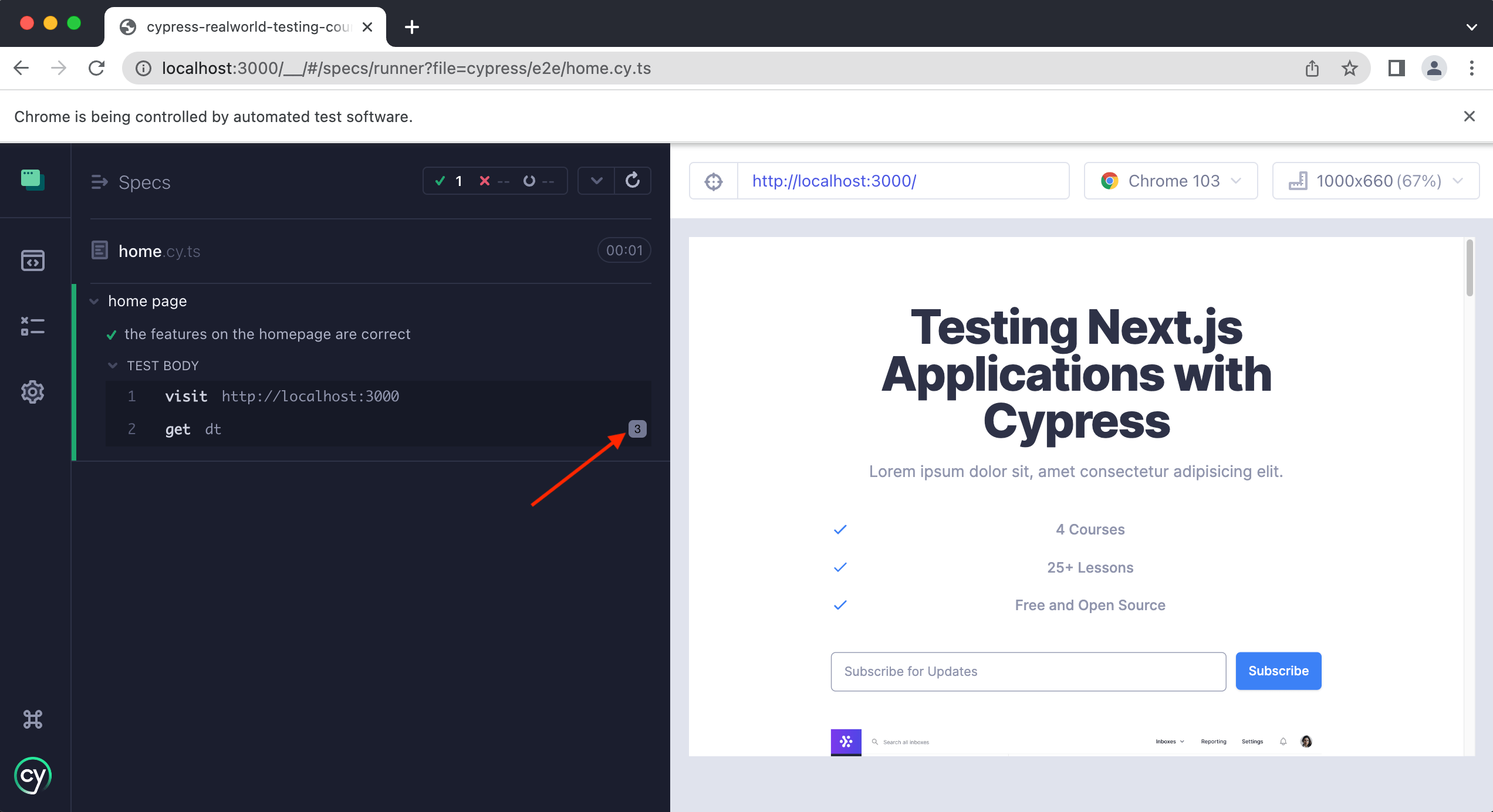
Look closely at the get in the Cypress command log and you'll see a small “3” next to it. That means Cypress grabbed three elements, because there are three <dt> elements on the page.
You can see this in more detail by clicking the step and opening the dev tools:
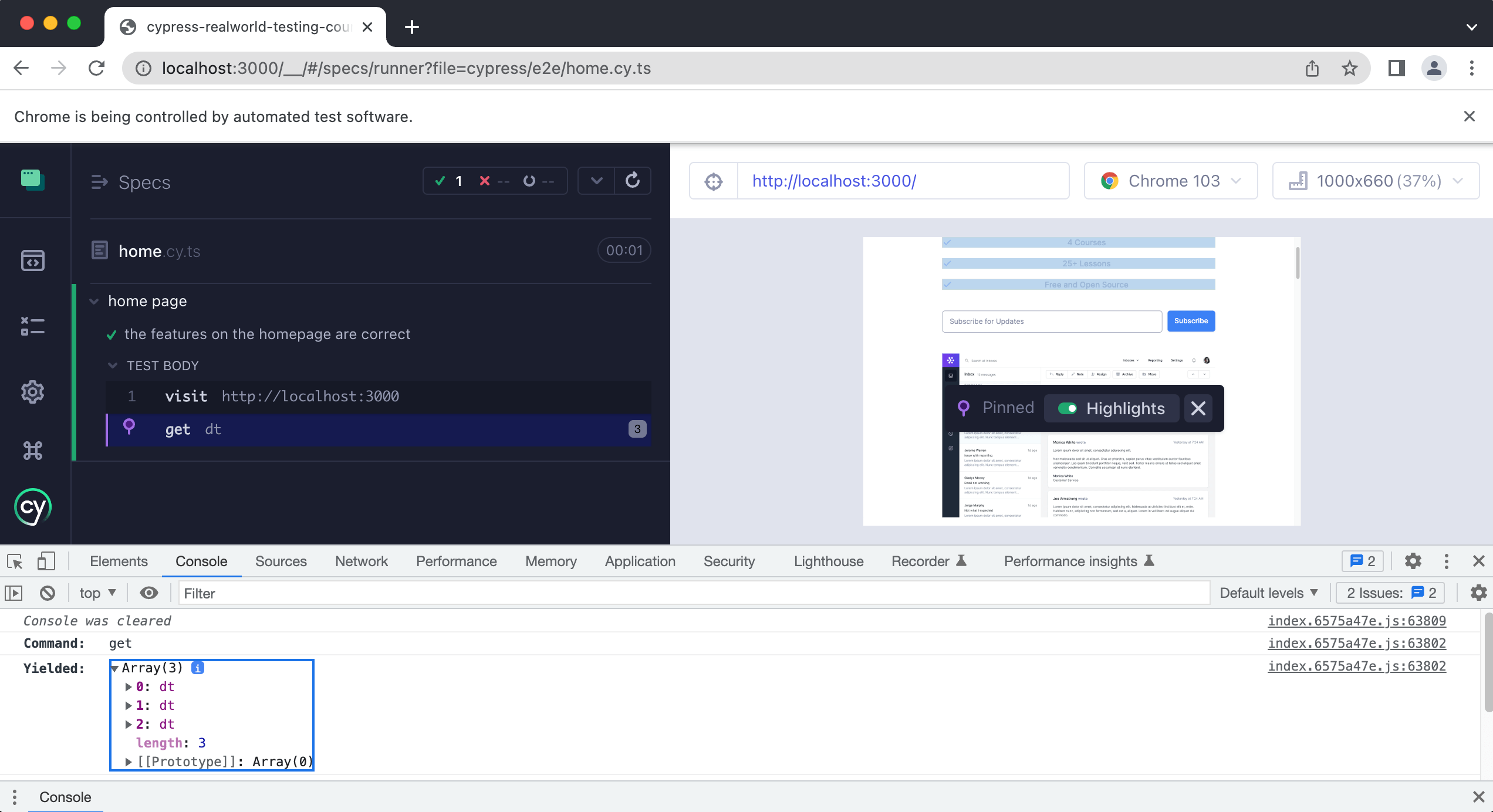
A list of three <dt> elements is printed to the console as the returned value.
So how do we grab just one of them? Specifically, we want the first one and we want to confirm its text says “4 Courses.”
Since we're getting back multiple elements, we can use the eq command to access a specific index among them, which is exactly what we need.
info
Remember that indexes start at 0, so the first element is at index 0, not 1.
Update your test:
it.only("the features on the homepage are correct", () => {
  cy.visit("http://localhost:3000")
  cy.get("dt").eq(0)
})
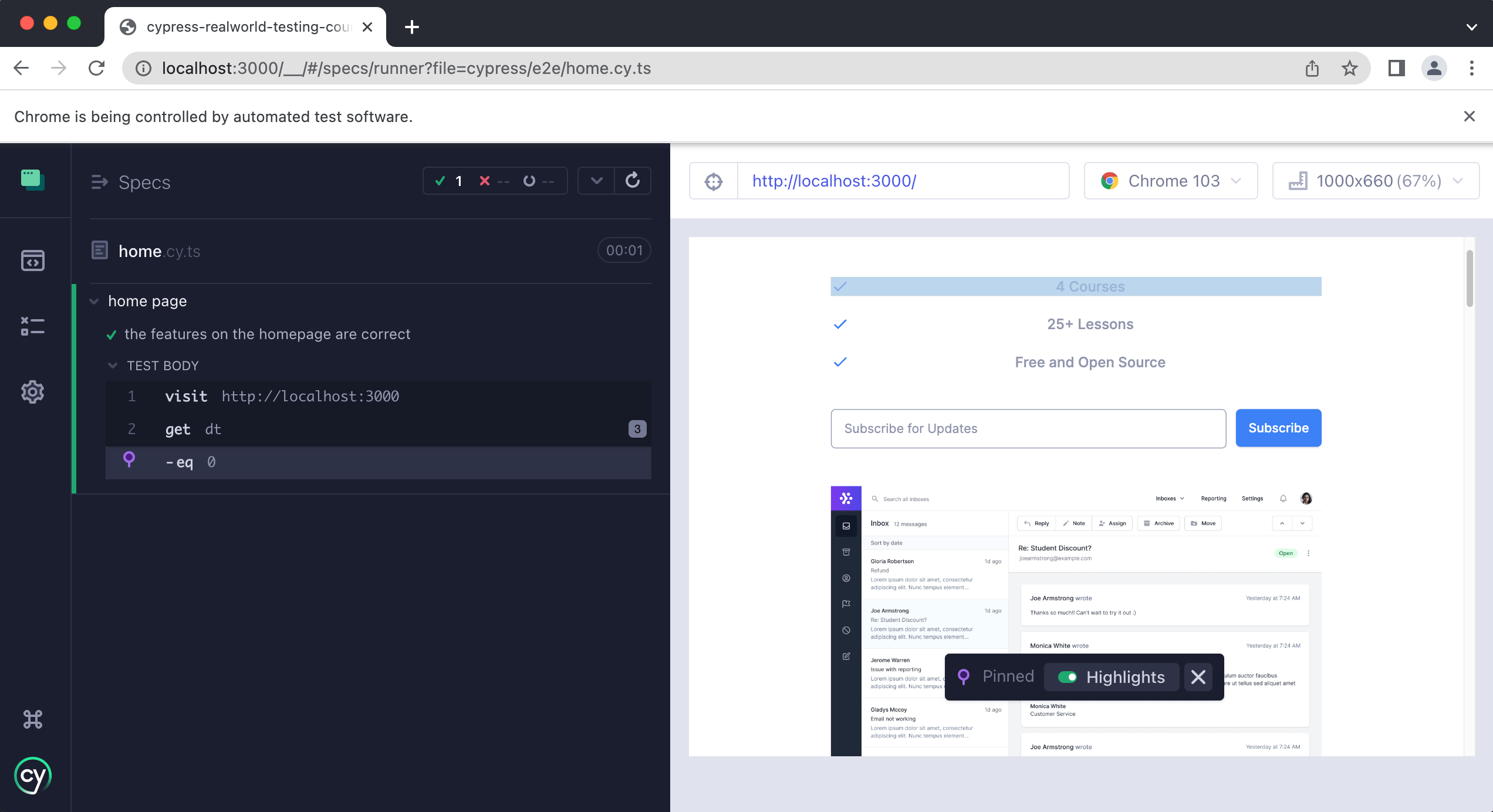
We're now grabbing the first <dt> element, which is exactly what we want. Now we just need an assertion that it contains the correct text.
it.only("the features on the homepage are correct", () => {
  cy.visit("http://localhost:3000")
  cy.get("dt").eq(0).contains("4 courses")
})
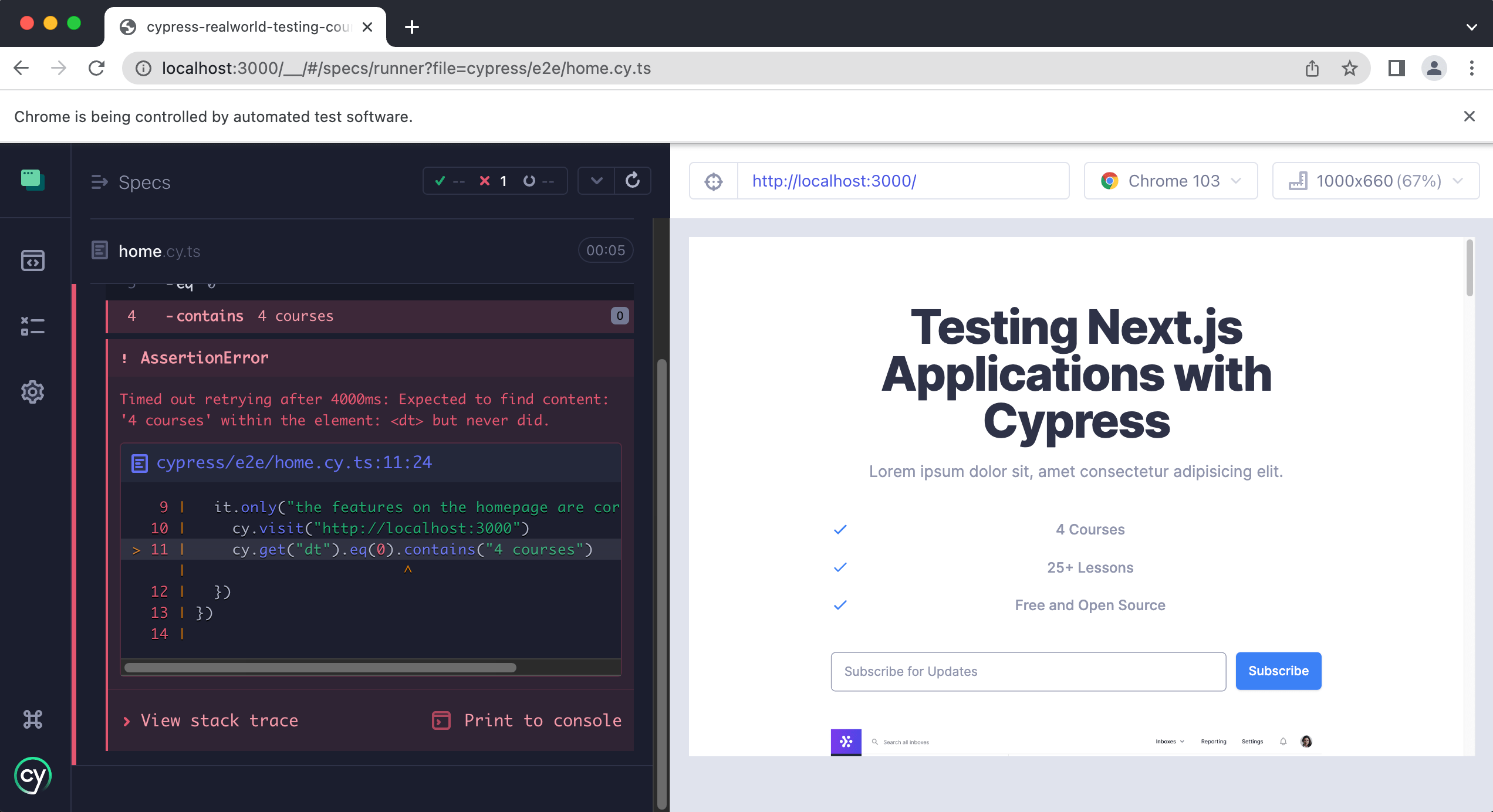
We're getting an error. Why?
We did this on purpose to highlight that contains() is case-sensitive. Our test has:
.contains("4 courses")
But the site says “4 Courses,” with a capital C.
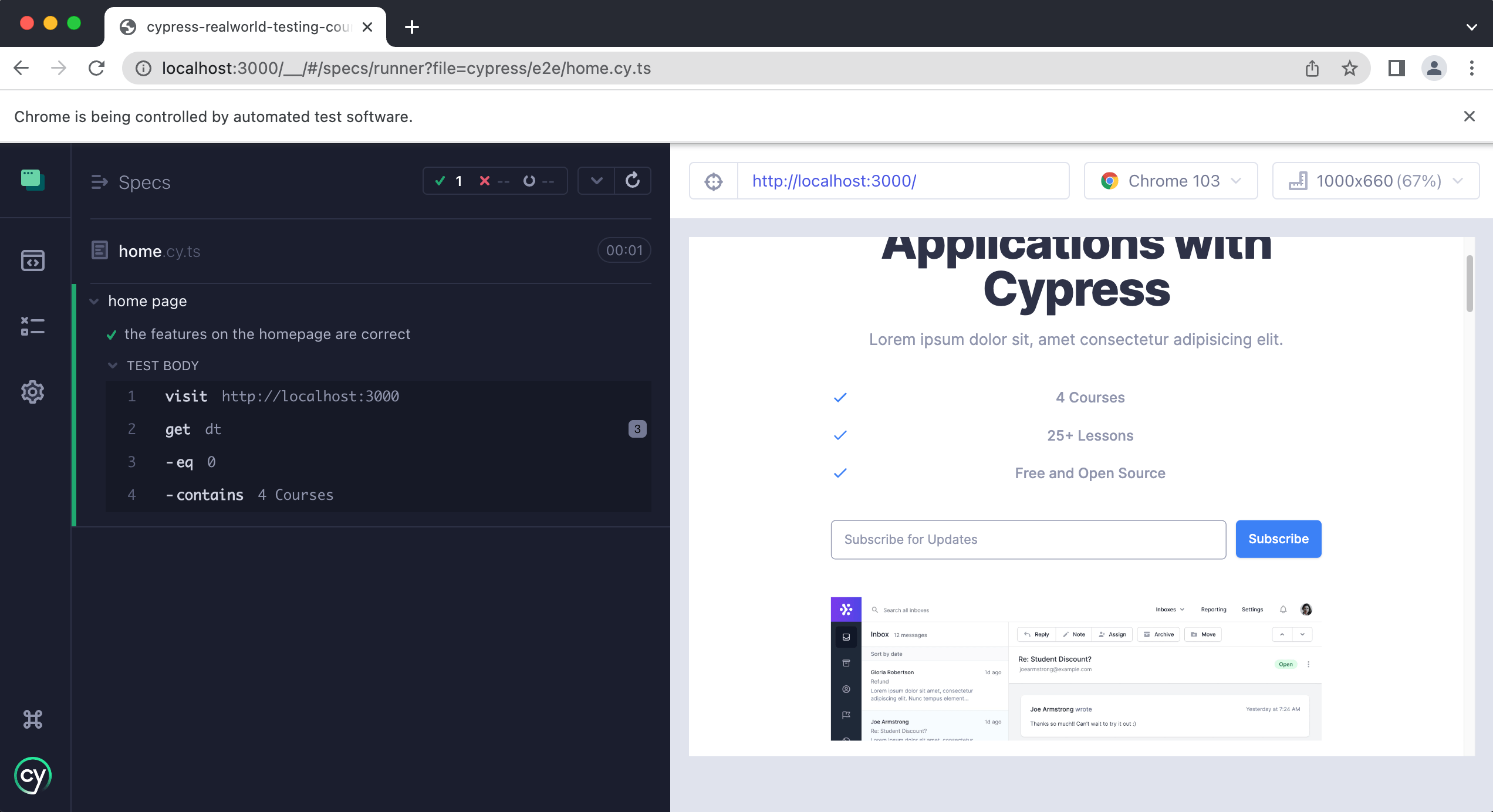
Fix it to get things passing again:
it.only("the features on the homepage are correct", () => {
  cy.visit("http://localhost:3000")
  cy.get("dt").eq(0).contains("4 Courses")
})
tip
You can also pass a regular expression to contains(). To make a case-insensitive comparison, use:
cy.get("dt").eq(0).contains(/4 courses/i)
Here's our entire spec file so far:
describe("home page", () => {
  it("the h1 contains the correct text", () => {
    cy.visit("http://localhost:3000")
    cy.get("[data-test='hero-heading']").contains(
      "Testing Next.js Applications with Cypress"
    )
  })

  it.only("the features on the homepage are correct", () => {
    cy.visit("http://localhost:3000")
    cy.get("dt").eq(0).contains("4 Courses")
  })
})
Practice
We still need assertions for the remaining two features, so we'll leave those to you for practice.
Pay close attention to this line:
cy.get("dt").eq(0).contains("4 Courses")
You can copy and paste it with minor tweaks to test the other features. Reference the correct index and update the expected text.
If you get stuck, the answer is below.
Practice Answers
beforeEach hook and refactoring our tests
We've covered a lot in this lesson and we're almost done. Before we finish, let's introduce hooks. Both tests in our spec file use the same line:
cy.visit("http://localhost:3000")
This isn't a problem with only two tests, but again, what happens when the file has dozens?
We can move that duplicated cy.visit() into a single beforeEach() hook, a function that runs before each test, which is exactly what we want.
Update your test to look like this:
describe("home page", () => {
  beforeEach(() => {
    cy.visit("http://localhost:3000")
  })

  it("the h1 contains the correct text", () => {
    cy.get("[data-test='hero-heading']").contains(
      "Testing Next.js Applications with Cypress"
    )
  })

  it("the features on the homepage are correct", () => {
    cy.get("dt").eq(0).contains("4 Courses")
    cy.get("dt").eq(1).contains("25+ Lessons")
    cy.get("dt").eq(2).contains("Free and Open Source")
  })
})
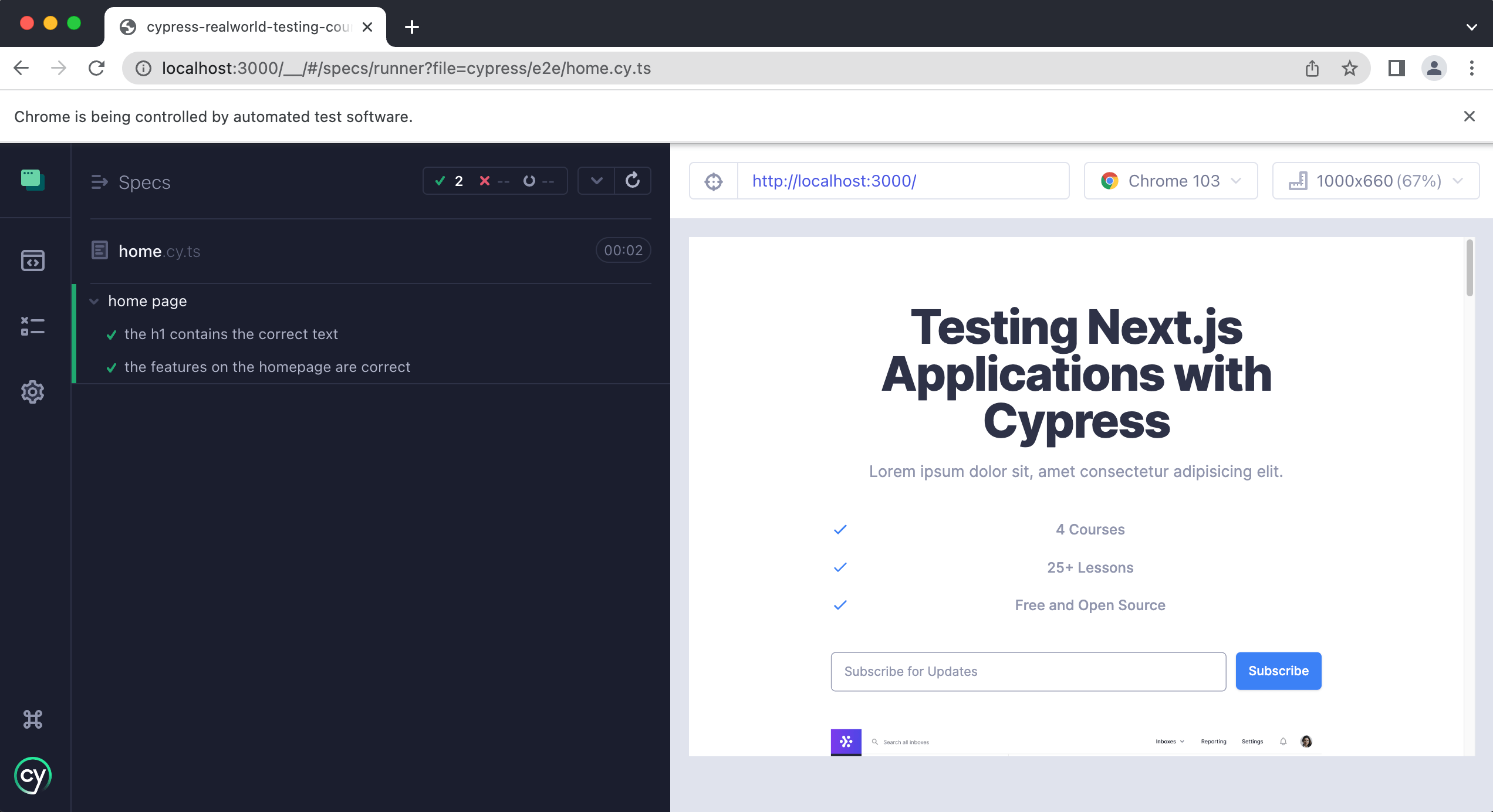
We removed cy.visit() from each test and placed it inside beforeEach() instead. Save the file and run the tests, and they should still pass.
Setting a baseUrl
There is still one thing we can improve. Right now we are hardcoding the full URL http://localhost:3000 inside of our cy.visit(). As our test suite grows, we would have to repeat this URL in every spec file, and if our application ever moved to a different address we would have to update every single one of them.
Cypress lets us set a global baseUrl so we only have to define the address of our application in one place. Setting a baseUrl is also a Cypress best practice: in addition to removing the hardcoded URLs, it allows us to easily switch between environments (for example, local development vs. a deployed staging server) and it speeds up the very first command in our tests by removing an initial page reload.
When we set up E2E testing in the previous lesson, Cypress created a cypress.config.ts file for us in the root of our project. Open it and add a baseUrl to the e2e object:
// cypress.config.ts
import { defineConfig } from "cypress"

export default defineConfig({
  e2e: {
    baseUrl: "http://localhost:3000",
    setupNodeEvents(on, config) {
      // implement node event listeners here
    },
  },
})
Now that Cypress knows the base address of our application, we can pass a relative path to cy.visit() instead of the full URL. To visit the home page, we pass "/":
describe("home page", () => {
  beforeEach(() => {
    cy.visit("/")
  })

  it("the h1 contains the correct text", () => {
    cy.get("[data-test='hero-heading']").contains(
      "Testing Next.js Applications with Cypress"
    )
  })

  it("the features on the homepage are correct", () => {
    cy.get("dt").eq(0).contains("4 Courses")
    cy.get("dt").eq(1).contains("25+ Lessons")
    cy.get("dt").eq(2).contains("Free and Open Source")
  })
})
Cypress will automatically prepend the baseUrl to the relative path, so cy.visit("/") is the same as visiting http://localhost:3000/. If we save our file and run the tests again, everything is still passing—but now our spec files no longer need to know the full address of our application. For the rest of this course, we will use relative paths together with our baseUrl.
Wrap up
In this lesson you installed Cypress and configured it for E2E testing. You created a spec file, wrote your first tests, and picked up some best practices for getting elements. Along the way, you learned some Cypress best practices for getting elements, including setting a global baseUrl so you can visit relative paths instead of hardcoding full URLs. Finally, you learned how to refactor and clean up your tests using a beforeEach hook.
In the next lesson, you'll learn how to test forms and how to create and use custom Cypress commands.